Frank Dual Sword
About Frank Dual Sword – Unity 3D Asset
Frank Dual Sword Unity Asset Overview
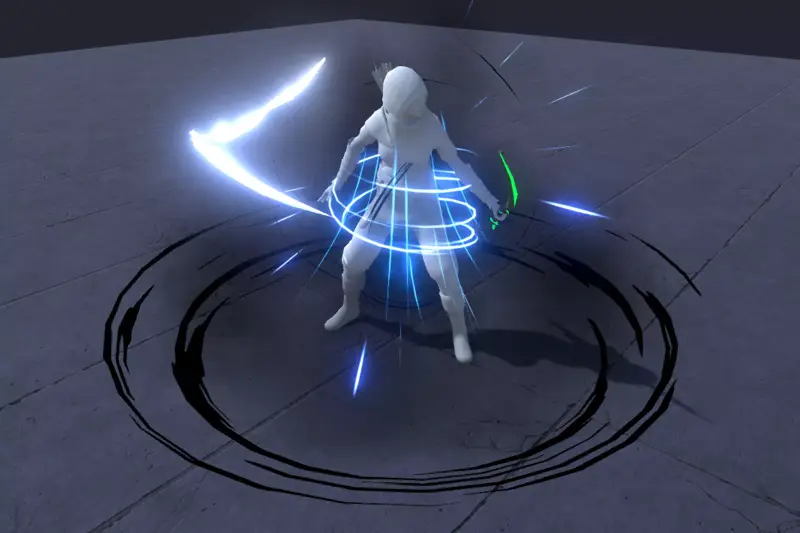
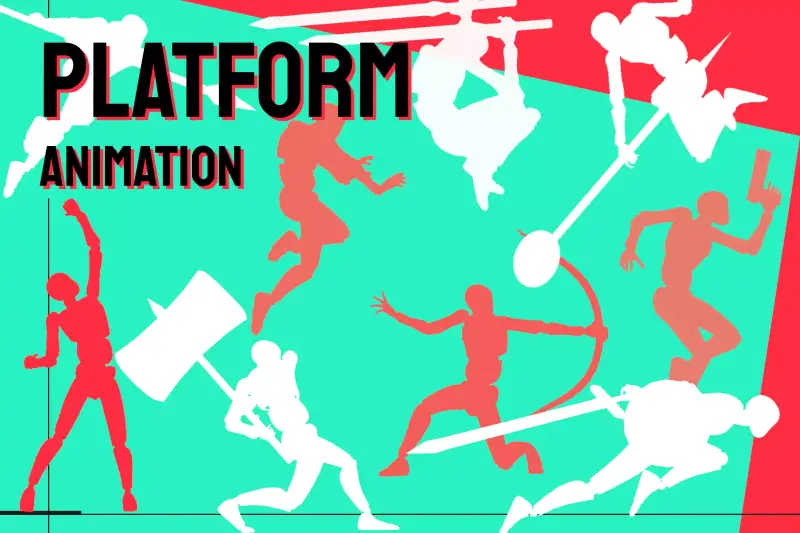
In third-person action games, melee combat relies heavily on animation quality. If your keyframes lack weight, momentum, or clean contact frames, your entire combat loop feels floaty regardless of how sophisticated your physics or damage scripts are. The Frank Dual Sword animation set addresses this challenge by providing a dedicated library of dual-blade combat animations built around the Unity Mecanim Humanoid Rig system.
Honestly, dual-wield animation sets are notoriously difficult to clean up. Many asset packs recycle single-sword animations and mirror them onto the off-hand bone, resulting in unnatural torso twisting and clipping. Frank Dual Sword features bespoke torso rotation, asymmetrical weight transfer, and balanced arm arcs. In my experience, having dedicated keyframes for both the main-hand and off-hand weapons cuts down hours of tweaking torso masks and chest layers in Unity's Animator controller.
Core Technical Features & Highlights
From an architecture perspective, the asset focuses on plug-and-play Mecanim setup while keeping memory overhead low. Here is a technical breakdown of its key animation characteristics:
- Humanoid Rig Standardization: Every clip is retargeted cleanly onto the standard Unity Humanoid skeleton, allowing easy mapping to custom character models using Mixamo, Synty, or custom Blender rigs.
- Dual Motion Formats: Includes both Root Motion clips for grounded movement drives and In-Place clips for projects utilizing custom character controller velocities (e.g.,
CharacterController.MoveorRigidbody.velocity). - Combo Branching Windows: Attack clips feature clear anticipation, execution, and recovery phases, making it straightforward to insert Animation Events for combo windows and hit-box activation.
- Locomotion Blend Trees: Comes with 8-way directional guard walks, combat idles, sprint transitions, and quick dodge rolls optimized for 2D Freeform Directional blend trees.
Ideal Use Cases & Game Genres
While designed around dual blades, the motion capture and keyframing work exceptionally well for several distinct project archetypes:
- Third-Person Action RPGs: Perfect for fast-paced rogue, assassin, or berserker character classes requiring multi-hit combo chains and rapid directional dodges.
- Top-Down Hack & Slash: The distinct silhouette poses and wide slashing arcs translate very well to isometric cameras where read-ability from above is critical.
- Soulslike / Tactical Combat: The distinct wind-up and recovery phases allow you to configure tight stamina costs and vulnerability frames during heavy attacks.
Quick-Start Unity Setup & Integration Guide
Integrating Frank Dual Sword into an existing character controller requires a structured approach to state management and animation events. Here is how I usually wire up the Animator Controller and hit registration scripts in Unity.
1. Animator Controller Layer Setup
Create a dedicated Combat Layer in your AnimatorController with a weight of 1.0. Set up an AnimatorOverrideController if you plan on swapping weapon types dynamically at runtime without rebuilding your transition logic.
2. C# Combat Driver Script
Attach this battle-tested state controller script to your player GameObject to handle light combo triggers, animation event listeners, and input buffering:
using UnityEngine;

[RequireComponent(typeof(Animator))]
public class DualSwordCombatHandler : MonoBehaviour
{
    private Animator animator;
    private int comboStep = 0;
    private bool isAttacking = false;
    private bool canBufferInput = false;

    [Header("Weapon Colliders")]
    [SerializeField] private Collider mainHandWeaponCollider;
    [SerializeField] private Collider offHandWeaponCollider;

    private void Awake()
    {
        animator = GetComponent<Animator>();
        DisableWeaponColliders();
    }

    private void Update()
    {
        if (Input.GetButtonDown("Fire1"))
        {
            ProcessAttackInput();
        }
    }

    private void ProcessAttackInput()
    {
        if (!isAttacking)
        {
            ExecuteAttack(1);
        }
        else if (canBufferInput && comboStep < 3)
        {
            comboStep++;
            canBufferInput = false;
            animator.SetInteger("ComboStep", comboStep);
        }
    }

    private void ExecuteAttack(int step)
    {
        isAttacking = true;
        comboStep = step;
        animator.SetInteger("ComboStep", comboStep);
        animator.SetTrigger("AttackTrigger");
    }

    // --- Animation Event Callbacks ---
    public void AE_OpenComboWindow()
    {
        canBufferInput = true;
    }

    public void AE_EnableHitbox()
    {
        if (mainHandWeaponCollider) mainHandWeaponCollider.enabled = true;
        if (offHandWeaponCollider) offHandWeaponCollider.enabled = true;
    }

    public void AE_DisableHitbox()
    {
        DisableWeaponColliders();
    }

    public void AE_ResetCombatState()
    {
        isAttacking = false;
        canBufferInput = false;
        comboStep = 0;
        animator.SetInteger("ComboStep", 0);
        DisableWeaponColliders();
    }

    private void DisableWeaponColliders()
    {
        if (mainHandWeaponCollider) mainHandWeaponCollider.enabled = false;
        if (offHandWeaponCollider) offHandWeaponCollider.enabled = false;
    }
}
Pros & Cons Assessment
- Pros:
- Exemplary limb balance and weight distribution—no weak, floaty swings.
- Clean retargeting across custom Humanoid rigs with minimal foot-sliding.
- Comprehensive move set including idles, combos, heavy attacks, dodges, and hit reactions.
- Includes both Root Motion and In-Place clip variants out of the box.
- Cons:
- Animation events for weapon trails and hitboxes need to be manually added to the FBX clip import settings.
- Dodge animation distances vary slightly, requiring fine-tuning if you use strict grid-based pathfinding.
Frequently Asked Questions (FAQ)
Does Frank Dual Sword work natively with Unity's New Input System?
Yes. The asset consists of raw 3D animation clips and FBX files, making it completely agnostic of your input architecture. Whether you rely on Unity's Legacy Input Manager, the new Input System package, or a custom input remapping asset, you simply drive the clips through Mecanim parameters.
Can these animations be retargeted onto non-standard humanoid meshes?
As long as your custom character mesh is configured as Humanoid in its Model Import Settings and the bone mapping (Spine, Shoulders, Hands, Legs) is validated, Unity will automatically retarget these clips accurately. You may only need to tweak hand transform offsets depending on the thickness of your character's weapon handles.
What are the licensing conditions for evaluating this asset package?
Here is the key takeaway: packages and source files obtained from this platform are provided strictly for educational, testing, and architecture evaluation purposes only—never for commercial production releases. If you intend to ship a commercial title using these animations, please purchase an official license directly from the Unity Asset Store to support the original author.
Asset Details & Specifications
| Category | 3D / Animations |
|---|---|
| Latest Version | v1.2 |
| File Size | 20.23 MB |
| Added to Platform | June 6, 2026 |
| Views | 8 views |
| Downloads | 2 downloads |
| Favourites | 0 favourites |
| Official Store | Buy Original License on Unity Asset Store → |
| Issue with Package? | Report Broken Link → |