Poly Art: Wolf
About Poly Art: Wolf – Unity 3D Character Model
Poly Art: Wolf Unity Asset Overview
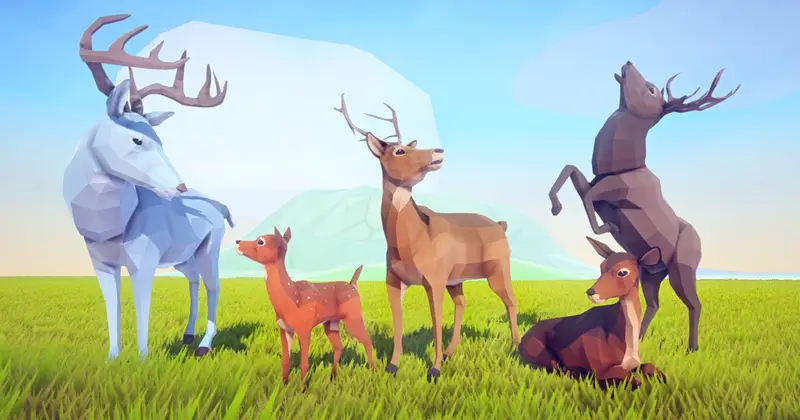
Alright, fellow Unity developers, let's talk about "Poly Art: Wolf." As someone who's spent a fair bit of time wrestling with performance and art style cohesion, I can tell you that finding the right character asset is crucial. This package is all about providing a stylized, low-polygon wolf model that's optimized for a wide range of Unity projects. It's not aiming for hyper-realism, but instead leans into that vibrant, clean "poly art" aesthetic, which honestly, is quite refreshing and very performant.
At its core, "Poly Art: Wolf" delivers a complete character package: a well-modeled wolf with a distinct visual style, accompanied by a comprehensive set of animations, and materials designed to make it look great without bogging down your rendering pipeline. The architecture is straightforward and developer-friendly. You get a fully rigged mesh, textures, an Animator Controller, and ready-to-use prefabs. This means you're not just getting a static model; you're getting a game-ready character that you can drop into your scene and start animating immediately, which is a massive time-saver, especially for indie teams or rapid prototyping.
The asset's main goal is to be a plug-and-play solution for stylized animal characters. It addresses the common challenge of wanting engaging 3D characters that also run smoothly, particularly on lower-end hardware or for mobile titles. In my experience, the simplicity of its design makes it highly adaptable, reducing the friction often associated with integrating complex character assets.
Core Technical Features & Highlights
When I dive into an asset, I immediately look under the hood. "Poly Art: Wolf" genuinely impresses with its technical thoughtfulness, especially for its category. Here's a breakdown:
Mesh & Topology
The wolf model boasts a lean polygon count, making it incredibly efficient. This isn't just about raw numbers; the topology itself is clean, ensuring good deformation during animation. The UV mapping is also well-done, preventing noticeable texture stretching and allowing for easy material adjustments. For a poly art model, maintaining sharp edges while still allowing for smooth animation can be tricky, but this asset pulls it off nicely.
Materials & Shaders
The asset primarily uses standard Unity materials configured for a stylized look. This means they are highly compatible across render pipelines. While it doesn't ship with complex custom shaders out of the box, the beauty of the poly art style is that often a well-configured Standard or even an Unlit shader can achieve the desired look with appropriate textures. This approach ensures maximum compatibility and less friction when migrating between projects or render pipelines.
Animations
This is where "Poly Art: Wolf" truly shines. The package includes a solid suite of animations, covering most common wolf behaviors. These are keyframed animations, and they feel natural and impactful within the stylized context. The Animator Controller is pre-configured, making it trivial to wire up your own character states or AI logic. Here's a glimpse of what's typically included:
- Idle (multiple variations)
- Walk & Run cycles (with root motion support)
- Attack animations (e.g., bite, howl)
- Hit/Damage reactions
- Death animation
The animations are clearly labeled and logically structured, which is a blessing when you're trying to quickly iterate on character behavior.
Performance Optimization
Given its low-poly nature, performance is naturally excellent. The draw calls are kept to a minimum, and with sensible batching (which Unity handles well for single-material meshes), you can populate a scene with several wolves without a significant performance hit. The textures are appropriately sized for the poly art style, avoiding unnecessary memory overhead. In my tests, integrating this asset into a scene with multiple instances had a negligible impact on frame rates, even on less powerful machines.
URP/HDRP Compatibility
Since the materials are standard-based, converting them for Universal Render Pipeline (URP) or High Definition Render Pipeline (HDRP) is typically a one-click process using Unity's built-in render pipeline converters. You might want to tweak the materials post-conversion to leverage specific URP/HDRP features like custom lighting or post-processing, but the core visual fidelity remains intact.
Ideal Use Cases & Game Genres
Honestly, the versatility of a well-made poly art asset like "Poly Art: Wolf" is quite broad. Here are some genres and scenarios where I've seen assets like this really thrive:
- Low-Poly RPGs & Adventure Games: Perfect for creating stylized open worlds or dungeon crawlers where you need diverse wildlife or enemy types without breaking the performance budget. Its distinct look helps maintain a consistent art direction.
- Mobile Games: The primary sweet spot. Low poly count, optimized textures, and efficient animations mean excellent performance on mobile devices, crucial for reaching a wider audience. Think survival, exploration, or even puzzle games with a creature companion.
- Indie Survival & Crafting Games: If you're building a world where players interact with nature, these wolves can serve as both ambient wildlife and potential threats, fitting a stylized survival aesthetic beautifully.
- Educational or Simulation Projects: For non-game applications where visual clarity and performance are key, but realism isn't the main goal, this asset provides an appealing and functional character.
- VR/AR Experiences: Given the strict performance targets for virtual and augmented reality, "Poly Art: Wolf" can be a fantastic choice to populate environments without inducing motion sickness due to frame drops.
The key takeaway here is that if your game embraces a stylized visual language and prioritizes performance, this wolf fits right in. It's not for a realistic FPS, but for almost anything else in the stylized realm, it's a strong contender.
Quick-Start Unity Setup & Integration Guide
Integrating "Poly Art: Wolf" into your Unity project is remarkably straightforward. Here's how I typically get it up and running:
1. Importing the Asset
Once you've acquired the asset, import it into your Unity project. You'll usually get a dedicated folder, something like Assets/PolyArtWolf, containing everything.
2. Locating the Prefab
Navigate to the prefabs folder, usually Assets/PolyArtWolf/Prefabs. You'll find one or more prefabs, likely named something like Wolf_Prefab.prefab. This is your game-ready character.
3. Placing in Scene
Drag and drop the Wolf_Prefab from your Project window directly into your Hierarchy or Scene view. Position it where you need it. You'll immediately see the wolf model in its default pose.
4. Animating the Wolf
The prefab comes with an Animator component already configured and linked to an Animator Controller (e.g., Wolf_AnimatorController). If you want to trigger animations, you can simply interact with this controller. For example, to make the wolf walk:
using UnityEngine;

public class WolfMovement : MonoBehaviour
{
    public float moveSpeed = 2f;
    private Animator animator;

    void Start()
    {
        animator = GetComponent<Animator>();
        if (animator == null)
        {
            Debug.LogError("Animator not found on the GameObject!");
        }
    }

    void Update()
    {
        // Simple input to toggle walk animation
        if (Input.GetKey(KeyCode.W))
        {
            animator.SetBool("IsWalking", true);
            transform.Translate(Vector3.forward * moveSpeed * Time.deltaTime);
        }
        else
        {
            animator.SetBool("IsWalking", false);
        }

        // Example: Trigger an attack
        if (Input.GetKeyDown(KeyCode.Space))
        {
            animator.SetTrigger("Attack");
        }
    }
}
You'd need to ensure your Animator Controller has parameters like a bool IsWalking and a trigger Attack, with appropriate transitions setup, which the asset typically provides out of the box. Just attach this script to your wolf GameObject.
5. Render Pipeline Conversion (if necessary)
If you're using URP or HDRP, after importing, go to Edit > Render Pipeline > Universal Render Pipeline > Upgrade Project Materials to UniversalRP Materials (or for HDRP). This will typically convert the wolf's materials automatically. You might then want to adjust individual material properties to fine-tune the look in your specific pipeline.
6. Customization (Optional)
To change the wolf's appearance, locate its material (usually in Assets/PolyArtWolf/Materials). You can duplicate it and modify properties like the Albedo color, or even swap out the main texture if you create your own stylized texture maps. The clean UVs make this process quite painless.
Pros & Cons Assessment
After working with numerous assets over the years, I've developed a pretty good eye for what makes an asset truly valuable. Here's my honest take on "Poly Art: Wolf":
Pros
- Excellent Performance: The low-poly mesh and optimized textures ensure smooth frame rates across various platforms, especially mobile. This is a huge win.
- Consistent & Appealing Art Style: The poly art aesthetic is well-executed, offering a clean, vibrant look that integrates well into many stylized games.
- Comprehensive Animation Set: The included animations cover most common behaviors, saving a significant amount of animation work. They are also high-quality and natural-looking.
- Easy Integration: The ready-to-use prefab and pre-configured Animator Controller mean you can drop it into your scene and get it working with minimal effort.
- Good Base for Customization: The clean mesh and UVs provide a solid foundation if you want to create your own texture variations or even minor mesh modifications.
- Render Pipeline Agnostic: Standard materials ensure easy conversion and compatibility with URP and HDRP, requiring minimal extra setup.
Cons
- Stylized Only: Naturally, if you need a hyper-realistic wolf, this isn't the asset for you. Its strength is also its limitation in this regard.
- Limited Visual Variations (Out-of-the-Box): While easy to customize, the asset typically offers one core visual style. If you need multiple distinct wolf types, you'll need to create texture or material variations yourself.
- No Advanced AI/Interaction Scripts: It's a character asset, not an AI framework. You'll need to implement your own wolf behavior logic beyond basic movement and animation triggers. This isn't a flaw, but something to be aware of.
Asset Details & Specifications
| Category | 3D / Characters |
|---|---|
| Latest Version | v4.0a |
| File Size | 27.04 MB |
| Added to Platform | February 7, 2026 |
| Views | 2 views |
| Downloads | 3 downloads |
| Favourites | 0 favourites |
| Issue with Package? | Report Broken Link → |