Synty ANIMATION - Sword Combat
About Synty ANIMATION - Sword Combat – Unity 3D Asset
Synty ANIMATION - Sword Combat Unity Asset Overview
Hey there! As a senior Unity developer who has spent over eight years shipping projects, I know firsthand how painful it is to prototype melee combat. Building a responsive animation pipeline from scratch eats up weeks of production time. That is where Synty ANIMATION - Sword Combat comes into play. In my experience, Synty Studios is legendary for their stylized polygonal art, but their move into dedicated animation packs bridges a massive gap for developers who want polished, modular motion capture data without the headache of heavy, photorealistic retargeting.
From an architectural standpoint, this asset provides a clean set of humanoid animation clips paired with straightforward controller logic. It relies heavily on standard Mecanim states, making it modular enough to drop straight into custom movement frameworks. Whether you are building an indie dungeon crawler or a stylized action game, the structural foundation here is built to minimize state machine bloat while maximizing combat responsiveness.
Core Technical Features & Highlights
When evaluating animation packs, I look closely at root motion implementation, transition blending, and structural organization. Synty nailed the fundamentals here, providing tools that integrate cleanly into modern pipelines like URP and HDRP without throwing material warnings.
Key Technical Features
- Humanoid Rig Compatibility: Fully optimized for Unity's standard Avatar system, allowing instant retargeting across custom polygonal or standard humanoid characters.
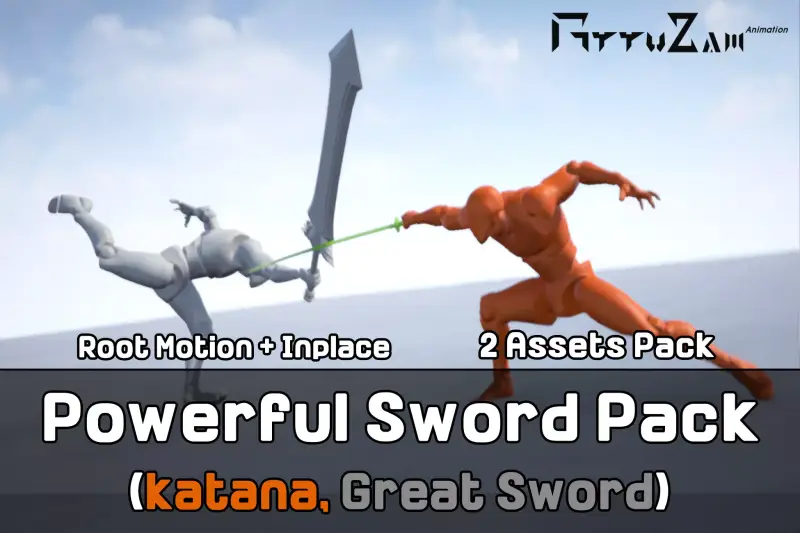
- Root Motion & In-Place Variants: Includes both root motion configurations for physics-driven momentum and in-place animations for rigid character controllers.
- Modular State Organization: Animation clips are neatly categorized by attack strings, parries, hits, deaths, and directional movement.
- Lightweight Footprint: Optimized compression settings keep memory overhead low, which is crucial for mobile and Nintendo Switch builds.
Ideal Use Cases & Game Genres
Honestly, not every animation pack fits every game style. Because of the distinct polygonal aesthetic that Synty is known for, this asset shines brightest in specific genres:
- Stylized Indie Action RPGs: Perfect for top-down or third-person hack-and-slash titles where snappy combat timing matters more than ultra-realistic motion capture.
- Low-Poly Adventure Games: Pairs seamlessly with existing environment packs to maintain a consistent visual and mechanical art direction.
- Multiplayer Arena Brawlers: The quick recovery frames and readable attack wind-ups make these animations ideal for fast-paced player-versus-player combat loops.
Quick-Start Unity Setup & Integration Guide
Let's get this asset up and running in your project. Here is how I typically wire up a character controller using these combat animations in a standard MonoBehaviour setup.
First, import the package into your project folder. Ensure your character model is mapped to the standard Unity Humanoid rig. Drag your character prefab into the scene and assign the provided Animator Controller to the Animator component.
Next, use a simple input listener script to trigger your attack states. Here is a practical example of how to handle basic sword swings via code:
using UnityEngine;

public class SwordCombatController : MonoBehaviour
{
    private Animator animator;
    private static readonly int AttackTrigger = Animator.StringToHash("Attack_01");

    void Start()
    {
        animator = GetComponent<Animator>();
    }

    void Update()
    {
        if (Input.GetMouseButtonDown(0))
        {
            TriggerAttack();
        }
    }

    void TriggerAttack()
    {
        if (animator != null)
        {
            animator.SetTrigger(AttackTrigger);
        }
    }
}
Make sure your transition durations in the Animator Window are dialed in tightly—typically around 0.1 seconds for attacks—to ensure the sword swings feel snappy and responsive to player input.
Pros & Cons Assessment
Every tool has its strengths and trade-offs. Here is my honest breakdown after putting this asset through its paces:
- Pros: Excellent animation readability, clean root motion data, highly compatible with standard humanoid rigs, and saves weeks of manual keyframing.
- Cons: Highly stylized aesthetic means it might clash with ultra-realistic or PBR-heavy character models without heavy texture tweaking.
Asset Details & Specifications
| Category | 3D / Animations |
|---|---|
| Latest Version | v1.2.0 |
| File Size | 158.64 MB |
| Added to Platform | June 20, 2026 |
| Views | 6 views |
| Downloads | 4 downloads |
| Favourites | 0 favourites |
| Official Store | Buy Original License on Unity Asset Store → |
| Issue with Package? | Report Broken Link → |