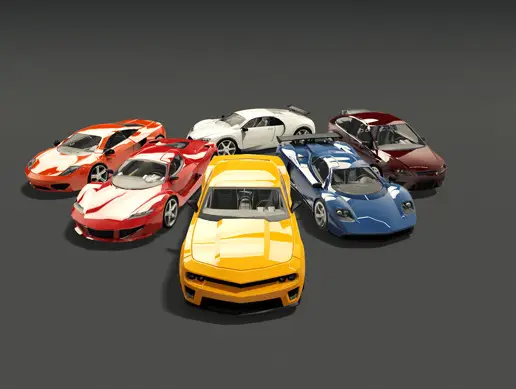
60 Fantastic Race Cars Pack
About 60 Fantastic Race Cars Pack – Unity Vehicle Asset
60 Fantastic Race Cars Pack Unity Asset Overview
In my experience building vehicle-heavy games in Unity, nothing eats up development time quite like prepping raw 3D vehicle assets. You usually end up fixing misaligned pivot points, unlinking baked wheels, re-mapping geometry, and consolidating dozens of oversized texture maps. The 60 Fantastic Race Cars Pack tackles this head-on by delivering a massive array of pre-optimized, ready-to-rig vehicle models directly targeting performance-critical projects.
From an architectural standpoint, this package acts as a complete visual library for racing and traffic systems. The assets are structured with clean parent-child transform hierarchies right out of the box. Instead of shipping bloated high-poly assets meant purely for offline rendering, the creator built these models with real-time runtime efficiency in mind. Every vehicle features isolated wheel sub-meshes, balanced polycounts, and shared texture atlases, making it straightforward to pipe them directly into standard physics engines or custom arcade controllers.
Core Technical Features & Highlights
When evaluating 3D vehicle packs for production, visual variety matters, but technical discipline matters more. Here is the key takeaway: these assets strike an excellent balance between visual detail and low rendering overhead.
Geometry and Mesh Topology
The polygon budgets across all 60 vehicles are tightly managed. On average, each vehicle sits comfortably between 4,000 to 12,000 triangles depending on body complexity. The edge loops follow structural body lines cleanly, allowing lighting and specular highlights to react smoothly without rendering artifacting or requiring excessive smoothing groups.
Wheel Isolation & Pivot Precision
Each car body is separated into a logical root container with four distinct wheel child objects (Wheel_FL, Wheel_FR, Wheel_RL, Wheel_RR). Crucially, the local pivot points for all four wheels are centered perfectly inside their local geometric bounding spheres. This means you do not have to waste time adjusting transform offsets when binding them to Unity's native WheelCollider or custom raycast suspension physics.
Material Atlasing & Draw Call Reduction
Rather than assigning 10 unique materials per vehicle, the pack relies on aggressive material batching and shared texture atlasing. Multiple cars share base texture maps and material definitions, which lets Unity’s dynamic batching and SRP Batcher compress dozens of render calls down to a handful per frame.
- Optimized Triangle Count: 4k – 12k tris per car, ideal for high vehicle density on screen.
- SRP Ready: Standard Built-in materials that easily auto-convert to URP Lit or HDRP Lit shaders.
- Clean Hierarchy: Fully broken-out meshes for wheels, brake calipers, and bodywork.
- Mobile & VR Friendly: Lightweight memory footprint suitable for performance-constrained targets.
Ideal Use Cases & Game Genres
Honestly, this package shines best when you need a wide variety of distinct vehicles without crippling your frame budget. Some ideal scenarios include:
- Mobile Track Racers: Great for circuit or drag racing titles targeting mid-range and low-end mobile devices.
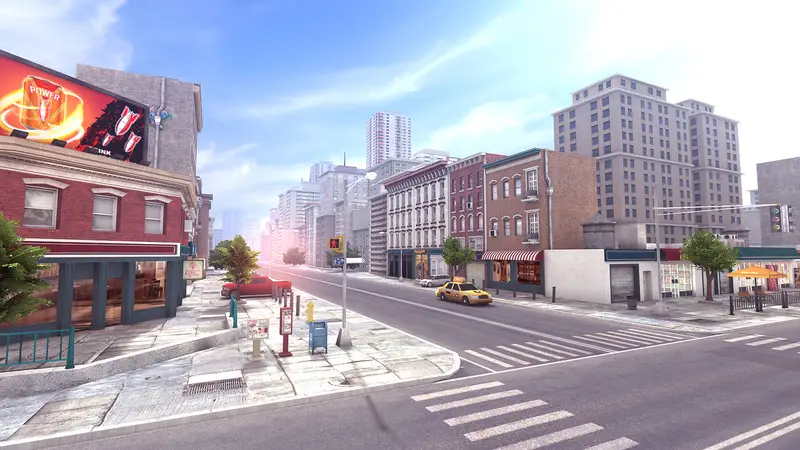
- Open World & City AI Traffic: Perfect for filling street lanes with variety while keeping GPU draw calls at rock-bottom levels.
- Arcade & Endless Runners: Quick setup for high-speed games requiring varied unlockable player cars and obstacle vehicles.
- Hyper-Casual Mechanics: Clean mesh topology makes it simple to apply custom stylized shaders, vertex deformers, or color tinting scripts.
Quick-Start Unity Setup & Integration Guide
Integrating these vehicles into a custom project setup takes very little work. Below is a practical step-by-step workflow for getting a car setup with basic visual wheel synchronization.
Step 1: Pipeline Conversion (If using URP)
If your project uses the Universal Render Pipeline (URP), select the material folder for the asset, go to Edit > Rendering > Materials > Convert Selected Built-in Materials to URP, and let Unity recalculate the shader properties.
Step 2: Attaching Physics Components
Create a root GameObject for your vehicle physics handler. Add a Rigidbody component and set the mass to around 1200kg. Create four empty child objects named after the wheel positions and attach Unity WheelCollider components to each.
Step 3: Visual Wheel Alignment Script
Attach the following utility script to your root car object to synchronize the 3D visual wheel transforms with their corresponding physical WheelCollider positions during Update:
using UnityEngine;

public class VehicleWheelSynchronizer : MonoBehaviour
{
    [System.Serializable]
    public struct WheelBinding
    {
        public WheelCollider physicsCollider;
        public Transform visualMeshTransform;
    }

    [Header("Wheel Configuration")]
    [SerializeField] private WheelBinding[] wheels;

    private void Update()
    {
        for (int i = 0; i < wheels.Length; i++)
        {
            SynchronizeWheel(wheels[i]);
        }
    }

    private void SynchronizeWheel(WheelBinding wheel)
    {
        if (wheel.physicsCollider == null || wheel.visualMeshTransform == null)
            return;

        Vector3 position;
        Quaternion rotation;

        // Extract calculated position and rotation from WheelCollider
        wheel.physicsCollider.GetWorldPose(out position, out rotation);

        // Apply to visual mesh
        wheel.visualMeshTransform.position = position;
        wheel.visualMeshTransform.rotation = rotation;
    }
}
Pros & Cons Assessment
Pros
- Exceptional Variety: 60 distinct vehicle styles give your project immediate asset diversity.
- High Performance: Aggressive draw-call efficiency through shared texturing and smart vertex budgets.
- Physics-Ready Geometry: Centered pivots on all wheels mean instant integration with stock or third-party vehicle controllers.
- Low Memory Overhead: Extremely compact file footprint, making builds fast to download and quick to load.
Cons
- Exterior Focus: Vehicle interiors are simplified, so this pack is not designed for full first-person cockpit simulation games.
- No Pre-Configured Rigidbody Controllers: Models ship as clean static prefabs/FBXs without pre-attached scripts, requiring you to bring your own driving logic.
Asset Details & Specifications
| Category | 3D / Vehicles |
|---|---|
| Latest Version | v1.0 |
| File Size | 787.46 MB |
| Added to Platform | February 18, 2026 |
| Views | 15 views |
| Downloads | 3 downloads |
| Favourites | 2 favourites |
| Official Store | Buy Original License on Unity Asset Store → |
| Issue with Package? | Report Broken Link → |