Horror Game PSD UI Kit
About Horror Game PSD UI Kit – Unity 2D & UI Pack
Horror Game PSD UI Kit Unity Asset Overview
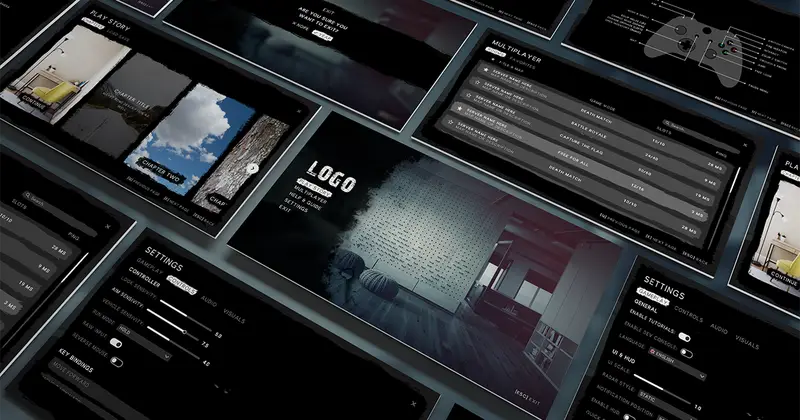
Building atmospheric interface elements for horror titles is surprisingly tricky. You aren't just placing flat buttons on a screen; you are attempting to make the user interface feel like an extension of a decay-ridden world. Distressed textures, grime, blood stains, and aged metallic frames often require complex layering and fine-tuned visual hierarchy. The Horror Game PSD UI Kit tackles this production challenge head-on by providing full source Photoshop (.PSD) documents alongside pre-sliced texture assets tailored for Unity’s uGUI Canvas system.
In my experience shipping dark atmospheric projects, UI artists and engineers spend far too much time bouncing back and forth between image editors and Unity to re-export trimmed assets, adjust border slicings, and fix scaling issues. This asset establishes a structured foundation: raw PSD source files with organized layer groups on one side, and isolated, high-density graphics ready for Unity's Sprite Atlas workflow on the other. Rather than locking you into a rigid layout, it gives you the raw graphical components to build menus, HUDs, inventory grids, and dialogue boxes that fit your game's unique technical constraints.
Core Technical Features & Highlights
From a technical production perspective, graphic kits need to be flexible and light on draw calls. Here is an overview of what this UI package brings to the table:
Asset Breakdown
- Layered Source PSDs: Fully editable Photoshop files organized into intuitive visual layers (Backgrounds, Frames, Headers, Icons, and Buttons) with non-destructive layer styles.
- Modular Component Slicing: Pre-sliced PNG elements exported with clean alpha channels, allowing for straightforward 9-slice setup using Unity's Sprite Editor.
- Diegetic UI Assets: Includes specialized graphics for health meters, sanity indicators, vintage journal pages, inventory slots, and keybind badges.
- High-Resolution Textures: Source files are supplied at high resolution, giving you plenty of headroom to downsample textures based on target platforms (such as low-end mobile devices versus 4K desktop builds).
Performance & Canvas Batching
Honestly, heavy visual themes with detailed grime textures run the risk of generating massive draw calls if not managed correctly. Because this pack breaks down visual elements into separate overlay textures (grime overlays, bevel borders, dark panel bases), putting these directly onto a Unity Canvas without consolidation will break batching immediately. To maintain 60 FPS across desktop and mobile, these exported PNGs must be combined into a single Sprite Atlas asset within Unity to allow UI batching to bundle multiple graphic elements into single draw calls.
Ideal Use Cases & Game Genres
While the aesthetic heavily leans toward traditional horror, the dark, distressed visual style adapts well across several specific genres:
- First-Person Survival Horror: Excellent for inventory management, inspect windows, ammo counters, and battery status displays reminiscent of classic survival titles.
- Psychological Thrillers & Escape Rooms: Perfect for diegetic elements like handwritten journals, lock combination screens, and interactive note inspectors.
- Dark Fantasy RPGs: Distressed metallic and leather textures translate seamlessly into gothic action-RPGs requiring rugged health bars and equipment grids.
- Tactical Zombie Wave Shooters: Modular button frames and warning panels fit apocalyptic HUD overlays and shop menus.
Quick-Start Unity Setup & Integration Guide
Integrating graphics from external PSD exports into a production-ready Unity Canvas requires a few deliberate steps to ensure proper scaling and optimal batching. Here is how I usually set up this asset in new project iterations:
Step 1: Import and Texture Configuration
Import your exported PNG assets into your project's texture directory. Select all sliced UI textures in the Project View and update their settings in the Inspector:
- Set Texture Type to Sprite (2D and UI).
- Set Sprite Mode to Single (or Multiple if you prefer slicing directly inside Unity).
- Enable Generate Physics Shapes off to save asset processing time.
- Open the Sprite Editor for frame textures and set Border values (L, R, T, B) to enable 9-slicing for scalable dialog panels.
Step 2: Create a Unified Sprite Atlas
Right-click in your Project folder and navigate to Create -> 2D -> Sprite Atlas. Name it Atlas_HorrorUI. Drag the folder containing your sliced horror UI graphics into the Objects for Packing list inside the Inspector. Click Pack Preview to verify that all UI elements share a single texture page, which keeps draw calls minimal during runtime menu rendering.
Step 3: Runtime Menu Transition Scripting
When displaying complex UI panels with multiple canvas renderers, toggling GameObject.SetActive(false) can cause layout re-building hitches. Here is a lightweight C# script to handle UI panel state transitions smoothly using a CanvasGroup, complete with audio trigger hooks for interactive sound effects:
using System.Collections;
using UnityEngine;
using UnityEngine.UI;

[RequireComponent(typeof(CanvasGroup))]
public class HorrorMenuController : MonoBehaviour
{
    [Header("UI State Settings")]
    [SerializeField] private CanvasGroup menuCanvasGroup;
    [SerializeField] private float fadeDuration = 0.35f;

    [Header("Audio Feedback")]
    [SerializeField] private AudioSource audioSource;
    [SerializeField] private AudioClip hoverSFX;
    [SerializeField] private AudioClip clickSFX;

    private Coroutine activeFadeRoutine;

    private void Awake()
    {
        if (menuCanvasGroup == null)
            menuCanvasGroup = GetComponent<CanvasGroup>();
    }

    public void OpenPanel()
    {
        ToggleState(true);
    }

    public void ClosePanel()
    {
        ToggleState(false);
    }

    private void ToggleState(bool show)
    {
        if (activeFadeRoutine != null)
            StopCoroutine(activeFadeRoutine);

        activeFadeRoutine = StartCoroutine(FadeCanvas(show ? 1f : 0f, show));
    }

    private IEnumerator FadeCanvas(float targetAlpha, bool isInteractable)
    {
        float startAlpha = menuCanvasGroup.alpha;
        float elapsed = 0f;

        while (elapsed < fadeDuration)
        {
            elapsed += Time.unscaledDeltaTime;
            menuCanvasGroup.alpha = Mathf.Lerp(startAlpha, targetAlpha, elapsed / fadeDuration);
            yield return null;
        }

        menuCanvasGroup.alpha = targetAlpha;
        menuCanvasGroup.interactable = isInteractable;
        menuCanvasGroup.blocksRaycasts = isInteractable;
    }

    public void OnPointerHover()
    {
        if (audioSource && hoverSFX)
            audioSource.PlayOneShot(hoverSFX);
    }

    public void OnPointerClick()
    {
        if (audioSource && clickSFX)
            audioSource.PlayOneShot(clickSFX);
    }
}
Pros & Cons Assessment
Pros
- Complete Visual Consistency: Every element—from frame borders to toggle boxes—shares the exact same art style, saving weeks of custom UI rendering time.
- Source PSD Access: Inclusion of native Photoshop files means artists can tweak blood splatters, alter grime intensity, or re-color highlight states easily.
- 9-Slice Ready: Panel elements slice cleanly in Unity's Sprite Editor without distorting corner textures or edge wear patterns.
- Zero Pipeline Lock-In: Works seamlessly with standard uGUI out of the box without requiring specialized third-party canvas shaders or legacy plugins.
Cons & Considerations
- Requires Photoshop Proficiency: To get full value from the modular PSD files, someone on your team needs a basic understanding of Adobe Photoshop layer masks and blending modes.
- No Pre-packaged UI Animation: The asset provides static graphic assets; panel transitions, blood drips, or flicker animations must be constructed manually via Unity's Animator or tweening engines.
Asset Details & Specifications
| Category | 2D / GUI |
|---|---|
| Latest Version | v1.0 |
| File Size | 87.37 MB |
| Added to Platform | February 10, 2026 |
| Views | 13 views |
| Downloads | 1 downloads |
| Favourites | 0 favourites |
| Issue with Package? | Report Broken Link → |