MIS-CarRider-RCC
About MIS-CarRider-RCC – Unity Asset Pack
MIS-CarRider-RCC Unity Asset Overview
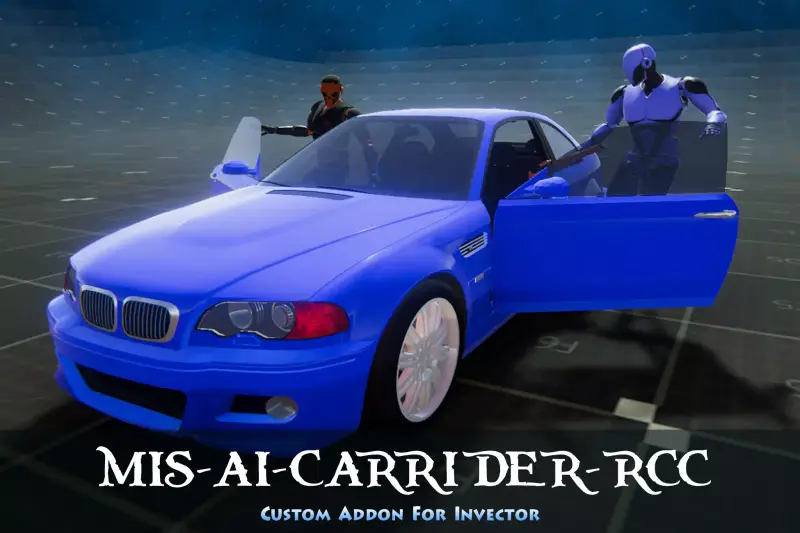
The MIS-CarRider-RCC extension serves as a specialized bridging architecture designed to connect character controller frameworks—specifically within the Motion Interaction System (MIS) ecosystem—with Boneer Games' Realistic Car Controller (RCC). At its architectural core, the package decouples character movement processing from vehicle physics by executing state-driven handoffs between the CharacterController or Rigidbody system and the active RCC_CarControllerV3 instance.
When a character approaches a target vehicle, the integration framework relies on localized trigger zones attached to the vehicle pre-fab to initiate entry sequences. Rather than executing hard positional parent-child snapping, the system utilizes target matching, inverse kinematics (IK), and finite state transitions. This maintains precise visual alignment of character hands and feet with steering wheels, pedals, and gear sticks, while preventing physics jitter caused by overlapping Collider boundaries during active vehicle operation.
The package structures its codebase into dedicated modules covering interaction triggers, seat management, IK targets, and C# event dispatches. By employing decoupled C# delegates, developers can intercept state changes such as OnEnterVehicleStart, OnEnterVehicleComplete, and OnExitVehicleComplete without modifying the underlying core physics calculations of RCC or the locomotion pipelines of the character controller.
Core Features & System Compatibility
The extension streamlines vehicle-character integration by managing multi-seat layouts, door animations, and driver-to-passenger dynamic state transitions. It handles complex entry angle calculations and IK adjustments automatically, enabling character models to interact cleanly with varied vehicle topologies ranging from compact sedans to high-clearance trucks.
Key Architectural Features
- Multi-Seat Support & Seat Switching: Manages driver, front passenger, and rear passenger seats with distinct entry/exit triggers and dedicated IK target nodes for hands, feet, and head look-at points.
- Dynamic Inverse Kinematics (IK): Directs hand transforms to steering wheels (with full rotation tracking), feet to foot pedals, and hands to gear shifts during active gear selection events.
- Decoupled Event Callbacks: Exposes standardized UnityEvents and C# actions allowing secondary game systems (such as HUD updates, audio engines, or weapon holster scripts) to respond instantly to interaction phases.
- AI Driver Compatibility: Includes hooks for artificial intelligence controllers to enter, drive, and exit vehicles using automated waypoint navigation alongside human player setups.
- Automatic Physics Toggling: Automatically disables character root collision capsules, gravity calculations, and movement solvers during vehicle occupancy to save CPU cycles and prevent collision conflict bugs.
Pros and Cons
- Pros: Significantly reduces setup time when connecting character assets with RCC; cleanly handles full vehicle entry/exit animation cycles; zero runtime garbage generation during state loops.
- Cons: Requires prior familiarity with both the host character controller system and RCC; setup requires precise manual placement of IK target transforms per vehicle model.
Integration & Setup Instructions
Setting up MIS-CarRider-RCC involves configuring both the vehicle prefab containing the RCC_CarControllerV3 component and the player character object equipped with the locomotion components.
Step-by-step Setup Process
- Import the core character framework and Realistic Car Controller into your Unity project, ensuring both assets compile cleanly without missing namespace errors.
- Add the
MISCarRiderRCC_Vehiclecomponent to your target vehicle prefab root. - Assign the vehicle triggers on the target prefab, defining entry zones (e.g., Driver Door, Passenger Door) and linking them to their corresponding internal seats.
- Position the IK target transforms inside the vehicle cockpit: SteeringWheel_IK, LeftFoot_IK, RightFoot_IK, and GearShift_IK.
- Attach the
MISCarRiderRCC_Characterscript to your player avatar root object. Ensure that the character animator uses a Humanoid Avatar configuration with active IK pass enabled in the baseline Animator state machine.
Custom Trigger & State Handling Code
The following C# script demonstrates how to subscribe to vehicle entry and exit events to manage external gameplay systems like camera state changes or UI displays:
using UnityEngine;
using MIS.CarRider.RCC;

public class VehicleStateListener : MonoBehaviour
{
    [SerializeField] private MISCarRiderRCC_Character characterRider;
    [SerializeField] private GameObject playerFollowCamera;
    [SerializeField] private GameObject vehicleCamera;

    private void OnEnable()
    {
        if (characterRider != null)
        {
            characterRider.OnEnterVehicleComplete.AddListener(HandleEnteredVehicle);
            characterRider.OnExitVehicleComplete.AddListener(HandleExitedVehicle);
        }
    }

    private void OnDisable()
    {
        if (characterRider != null)
        {
            characterRider.OnEnterVehicleComplete.RemoveListener(HandleEnteredVehicle);
            characterRider.OnExitVehicleComplete.RemoveListener(HandleExitedVehicle);
        }
    }

    private void HandleEnteredVehicle(GameObject vehicleObject)
    {
        if (playerFollowCamera != null) playerFollowCamera.SetActive(false);
        if (vehicleCamera != null) vehicleCamera.SetActive(true);

        Debug.Log($"Character successfully mounted vehicle: {vehicleObject.name}");
    }

    private void HandleExitedVehicle(GameObject vehicleObject)
    {
        if (vehicleCamera != null) vehicleCamera.SetActive(false);
        if (playerFollowCamera != null) playerFollowCamera.SetActive(true);

        Debug.Log($"Character successfully dismounted vehicle: {vehicleObject.name}");
    }
}
Performance Profiling & Optimization
In large open-world or dense urban environments featuring multiple active vehicles and non-player characters (NPCs), vehicle rider systems can introduce performance overhead if not managed carefully. Profiling in Unity's Profiler highlights three main areas requiring optimization: Animator IK evaluation, trigger volume overlap checks, and transform hierarchy hierarchy operations.
Optimization Best Practices
- Disable IK for Non-Visible Characters: Use Unity's
OnBecameInvisiblecallback or a distance-based LOD system to disable IK passes on passenger NPCs inside distant vehicles. This cuts down frame execution times in the Animation Rigging and Avatar IK threads. - Layer Mask Filtering for Interaction Triggers: Ensure entry trigger volumes on vehicles strictly target a dedicated
Characterlayer mask. Setting up broad trigger checks againstEverythingwill trigger unnecessaryOnTriggerEntercalls in physx, polluting CPU cycles. - Transform Reparenting Minimization: Rather than re-parenting the character under the vehicle root (which forces continuous matrix updates across long transform trees), attach the character to a lightweight, static seat container local transform and set position updates via cached Vector3 references.
Asset Details & Specifications
| Category | Add-Ons / Extensions |
|---|---|
| Latest Version | v1.4.4 (2 tracked releases) |
| File Size | 9.58 MB |
| Added to Platform | February 6, 2026 |
| Views | 7 views |
| Downloads | 3 downloads |
| Favourites | 0 favourites |
| Official Store | Buy Original License on Unity Asset Store → |
| Issue with Package? | Report Broken Link → |