Poly Art: Moose
About Poly Art: Moose – Unity 3D Character Model
Poly Art: Moose Unity Asset Overview
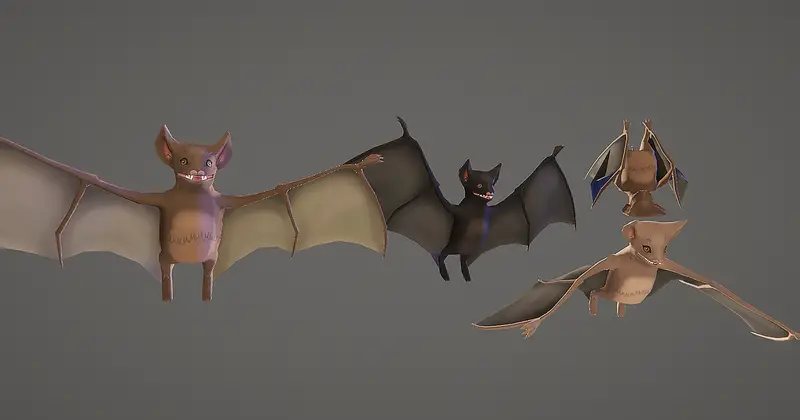
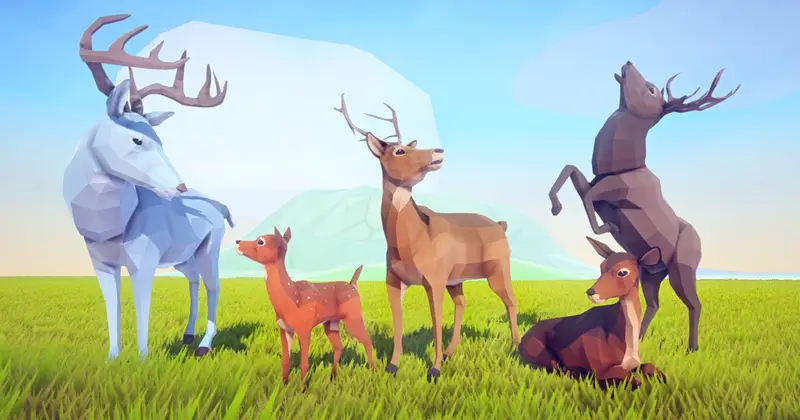
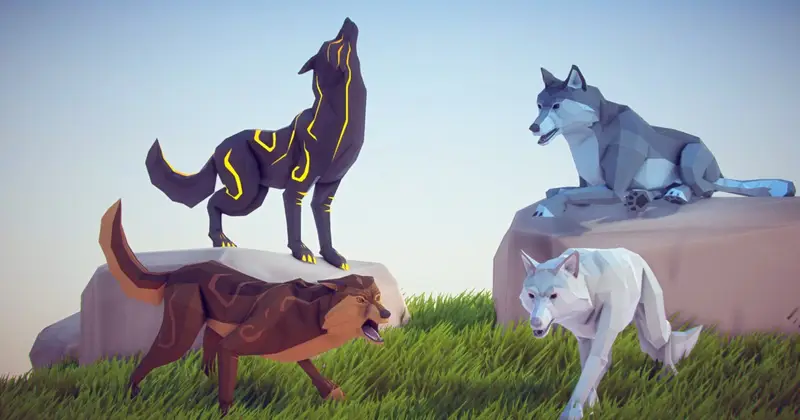
In stylized game production, balancing distinct aesthetics with tight performance budgets is a daily hurdle. The Poly Art: Moose asset tackles this by offering a fully rigged, faceted low-poly quadruped model tailored for wilderness environments, stylized survival titles, and low-poly RPGs. In my experience building modular environmental ecosystems, finding quadruped models with clean skeleton structures and natural animation loops is remarkably rare.
From an architectural standpoint, this asset utilizes an optimized low-polygon mesh that relies heavily on clear geometric silhouettes and color palette materials rather than dense high-resolution textures. This keeps memory consumption minimal and eliminates expensive texture sampling passes, making it ideal for games that require high-density animal herds driven by complex AI scripts.
Core Technical Features & Highlights
The core strength of this asset lies in its technical simplicity paired with strong art direction. Here is a technical breakdown of what is packed into the bundle:
- Optimized Mesh Topology: Clean geometric layout with a ultra-low poly count, ensuring minimal vertex processing overhead even when instantiating dozens of actors simultaneously.
- Rigging & Animation Set: Includes essential quadruped clips such as Idle, Walk, Run, Eat/Graze, Hit/Take Damage, and Die. The bone hierarchy is minimal, keeping CPU skinning costs exceptionally low.
- Animator Controller Setup: Features a ready-to-use Animator Controller with clean transition parameters already wired up for quick blending between locomotion states.
- Material Efficiency: Works via stylized palette textures/vertex color materials, allowing you to easily batch draw calls using Unity's GPU Instancing out of the box.
- Pipeline Compatibility: Works seamlessly across the Built-in Render Pipeline, Universal Render Pipeline (URP), and High Definition Render Pipeline (HDRP) with simple material shader conversions.
Ideal Use Cases & Game Genres
Honestly, this model fits effortlessly into projects where performance and low-poly artistic consistency are top priorities. Specific implementations include:
Stylized Open World Survival
When populating vast pine forests or snowy tundras, placing dozens of wandering wild animals can quickly inflate draw calls. Because this model utilizes lightweight geometry and compact materials, you can run large herds managed by a NavMeshAgent crowd manager without taking a hit on frame rates.
Low-Poly Action RPGs & Adventure Games
Whether used as ambient wildlife, non-player companions, or neutral mounts, the included animation clips make integrating state-driven AI straightforward. The crisp poly facets react beautifully to direction light sources in stylized environments.
Mobile & WebGL Titles
Mobile GPUs thrive on simplified vertex structures and minimal texture memory bandwidth. This asset is custom-tailored for strict target hardware budgets like standalone VR headsets, iOS/Android mobile devices, and browser-based WebGL builds.
Quick-Start Unity Setup & Integration Guide
Integrating the asset into an existing workflow takes only a few minutes. Here is the step-by-step setup procedure I follow when dropping this asset into a fresh scene:
1. Pipeline Material Conversion
If you are working inside URP, select the material assets supplied with the package, navigate to Window > Rendering > Render Pipeline Converter, choose Built-in to URP, check Material Upgrade, and click Convert Assets.
2. Rig & Animation Verification
Select the moose FBX file in your project panel. Inspect the Rig tab in the Inspector and confirm the animation type is set to Generic (or Legacy depending on your project's custom animation system requirements). Ensure the avatar definition is correctly assigned.
3. Writing a Basic AI Wandering Script
To get the moose moving around your terrain, attach a NavMeshAgent and an Animator component to the prefab, then apply a basic controller script like the one below:
using UnityEngine;
using UnityEngine.AI;

[RequireComponent(typeof(NavMeshAgent))]
[RequireComponent(typeof(Animator))]
public class MooseWanderAI : MonoBehaviour
{
    [SerializeField] private float wanderRadius = 20f;
    [SerializeField] private float idleTimeAtNode = 3f;

    private NavMeshAgent agent;
    private Animator animator;
    private float timer;

    private static readonly int SpeedHash = Animator.StringToHash("Speed");
    private static readonly int EatHash = Animator.StringToHash("IsEating");

    private void Awake()
    {
        agent = GetComponent<NavMeshAgent>();
        animator = GetComponent<Animator>();
    }

    private void Update()
    {
        // Pass normalized movement speed directly to the Animator Controller
        float currentSpeed = agent.velocity.magnitude / agent.speed;
        animator.SetFloat(SpeedHash, currentSpeed);

        if (!agent.pathPending && agent.remainingDistance <= agent.stoppingDistance)
        {
            timer += Time.deltaTime;
            if (timer >= idleTimeAtNode)
            {
                MoveToRandomPoint();
                timer = 0f;
            }
        }
    }

    private void MoveToRandomPoint()
    {
        Vector3 randomDirection = Random.insideUnitSphere * wanderRadius;
        randomDirection += transform.position;

        if (NavMesh.SamplePosition(randomDirection, out NavMeshHit hit, wanderRadius, NavMesh.AllAreas))
        {
            agent.SetDestination(hit.position);
            animator.SetBool(EatHash, false);
        }
    }
}
Pros & Cons Assessment
Pros
- Extremely Lightweight: Unbelievably soft on rendering pipelines, allowing massive screen counts without dropping frames.
- Cohesive Art Style: Fits right into popular faceted low-poly environmental asset packs without requiring custom re-texturing.
- Ready Out-of-the-Box: Comes complete with functional animations and a prefabricated Animator Controller.
- Customizable Look: Swap palette textures or edit vertex color shaders to create arctic, diseased, or magical variant moose types.
Cons
- Genre Specificity: The sharp poly-art aesthetic will not blend well into photorealistic or PBR-heavy visual pipelines.
- Limited Specificity in Clips: While key locomotion animations are provided, advanced combat or interactive behaviors (like swimming or pulling carts) require custom rigging work.
Asset Details & Specifications
| Category | 3D / Characters |
|---|---|
| Latest Version | v4.0a |
| File Size | 15.67 MB |
| Added to Platform | February 7, 2026 |
| Views | 0 views |
| Downloads | 1 downloads |
| Favourites | 0 favourites |
| Issue with Package? | Report Broken Link → |