Pure Nature 2 : Jungle
About Pure Nature 2 : Jungle – Unity 3D Environment
Pure Nature 2 : Jungle Unity Asset Overview
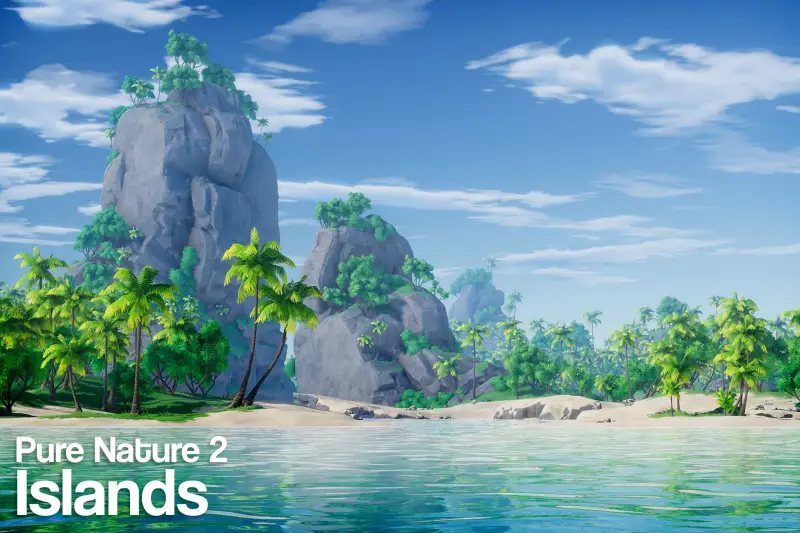
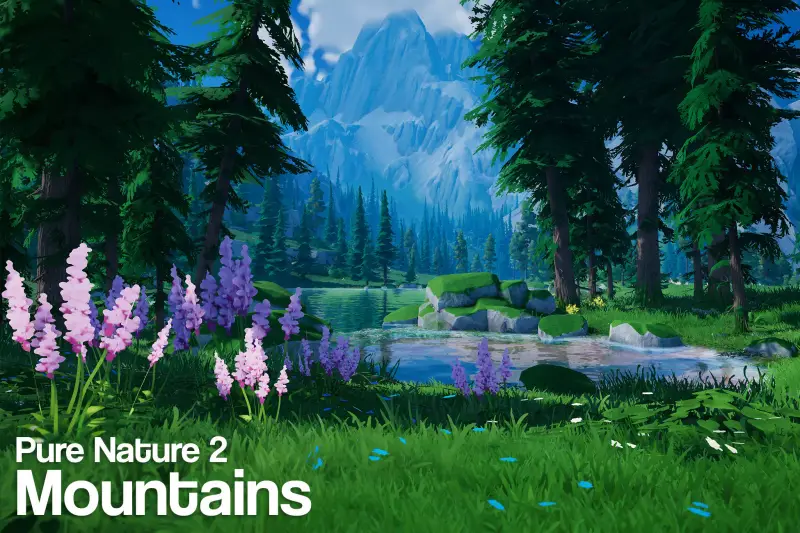
As a senior Unity developer with over 8 years in the trenches, I have seen my fair share of environment packs that look stunning in promotional screenshots but completely obliterate frame rates the moment you drop them into a functional build. When I first loaded Pure Nature 2 : Jungle into my test workspace, I was genuinely curious to see how the asset handled large-scale foliage distribution without choking the CPU. Honestly, what I found is a refreshingly well-structured environment package centered around modular 3D assets, stylized low-poly aesthetics, and highly performant custom shaders.
The core architecture of this asset leans heavily into instanced rendering and batching-friendly geometry. Instead of forcing developers to manually place thousands of individual trees and rocks, the asset is engineered to integrate cleanly with native Unity terrain tools and third-party scatter systems like Procedural Worlds Gaia or the official Unity Vegetation Studio pipeline. Here is the key takeaway for technical leads: the modular approach allows you to construct dense tropical scenes while keeping draw calls remarkably low.
Core Technical Features & Highlights
Beneath the vibrant visual exterior, Pure Nature 2 : Jungle packs a serious punch when it comes to technical execution. Let us break down what makes this package tick under the hood.
Shaders and Foliage Animation
The material setup relies heavily on customized URP shaders (with built-in pipeline support as well) that handle wind simulation directly in the vertex shader. By offloading wind sway calculations to the GPU, you avoid expensive CPU-side bone calculations for background foliage. You can easily tweak wind intensity and frequency by adjusting uniform shader properties globally via script:
using UnityEngine;

public class JungleEnvironmentController : MonoBehaviour
{
    [SerializeField] private Material jungleFoliageMaterial;
    [SerializeField] private float windStrengthMultiplier = 1.2f;

    void Start()
    {
        if (jungleFoliageMaterial != null)
        {
            jungleFoliageMaterial.SetFloat("_WindStrength", windStrengthMultiplier);
        }
    }
}
Performance Optimizations
- GPU Instancing Enabled: Every mesh prefab comes with
GPU Instancingpre-enabled on its default materials, drastically reducing batch counts when duplicating rocks, ferns, and trees. - Optimized LOD Groups: Essential assets feature built-in LOD0 to LOD2 states, ensuring that distant foliage aggressively sheds polygon density.
- Texture Atlasing: Leaves and smaller flora share compact texture atlases, minimizing state changes and texture swapping on the graphics card.
Ideal Use Cases & Game Genres
In my experience, picking the right environment pack saves weeks of painful optimization later. Pure Nature 2 : Jungle shines brightest in specific project scopes:
- Indie Survival & Exploration Games: The stylized low-poly art style strikes a great balance between atmospheric depth and rendering performance, making it ideal for open-world survival crafting titles.
- Mobile Adventure and Runner Titles: Because the geometry is clean and poly counts are conservative, running this environment smoothly on mid-range mobile devices is entirely achievable with proper occlusion culling.
- Stylized FPS Shooters: The dense canopy models and fallen log props provide excellent cover nodes and line-of-sight blockers for fast-paced combat arenas.
Quick-Start Unity Setup & Integration Guide
Getting this environment up and running in a fresh project takes less than ten minutes if you follow a clean pipeline. Here is my recommended step-by-step setup guide for Unity developers.
Step 1: Pipeline Configuration
First, verify your active rendering pipeline. If you are using the Universal Render Pipeline (URP), make sure you navigate to the asset folder and import the specific URP material upgrade package provided by the creator. Ignoring this step will result in magenta shaders due to missing or incompatible material properties.
Step 2: Lighting and Post-Processing
To really make those jungle greens pop, configure your scene lighting with a directional light acting as the sun, paired with a subtle baked or real-time Indirect Illumination bounce. Add a Volume component to your scene and enable Color Adjustments, Bloom, and a touch of Vignette to establish that humid, atmospheric jungle mood.
Step 3: Terrain Details Setup
Instead of manually dropping prefabs, register the ground cover meshes into your Unity TerrainData detail painter. Adjust the Healthy Color and Dry Color properties to match your directional lighting color temperature for seamless blending.
Pros & Cons Assessment
No asset is flawless. Here is my honest, developer-to-developer breakdown of the strengths and weaknesses of this jungle environment.
- Pros: Exceptionally clean topology, highly performant out of the box with GPU Instancing, gorgeous stylized art direction, and seamless compatibility with standard terrain tools.
- Cons: The built-in wind shaders require manual tweaking if you want localized weather variance, and collision meshes on smaller foliage props need to be manually stripped if you are optimizing for pure mobile throughput.
Asset Details & Specifications
| Category | 3D / Environments |
|---|---|
| Latest Version | v1.1 |
| File Size | 1.06 GB |
| Added to Platform | June 14, 2026 |
| Views | 6 views |
| Downloads | 3 downloads |
| Favourites | 1 favourites |
| Official Store | Buy Original License on Unity Asset Store → |
| Issue with Package? | Report Broken Link → |