Critter Environment
About Critter Environment – Unity 3D Asset
Critter Environment Unity Asset Overview
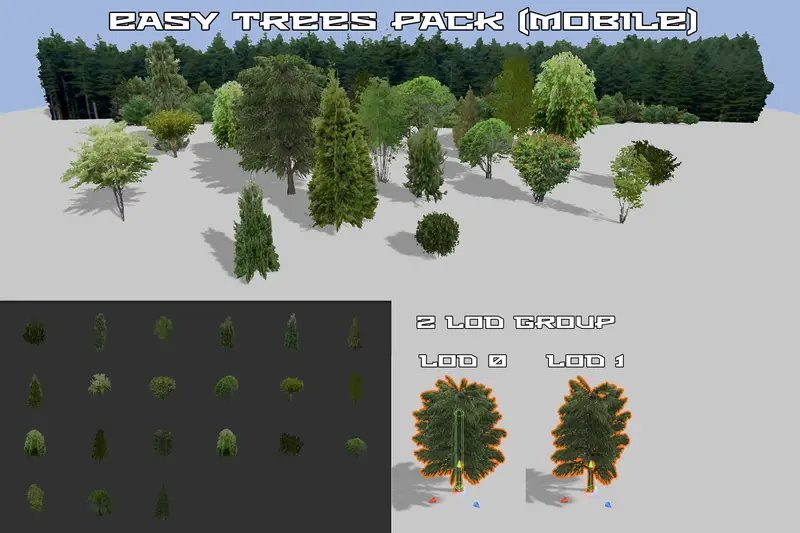
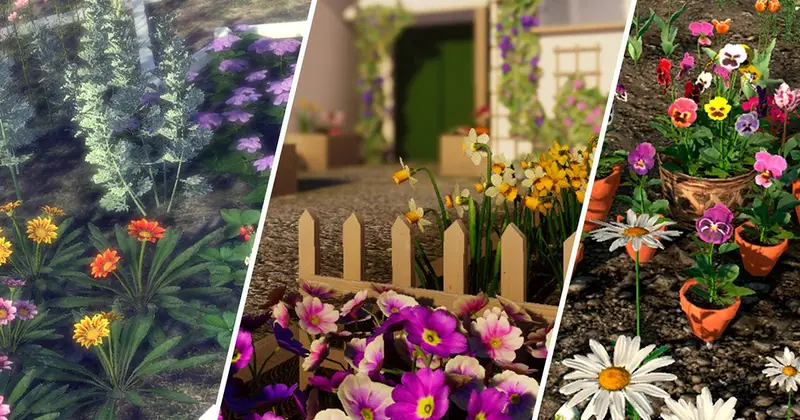
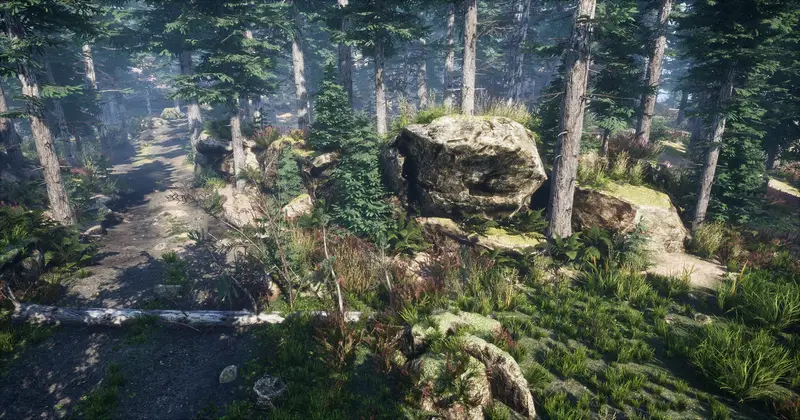
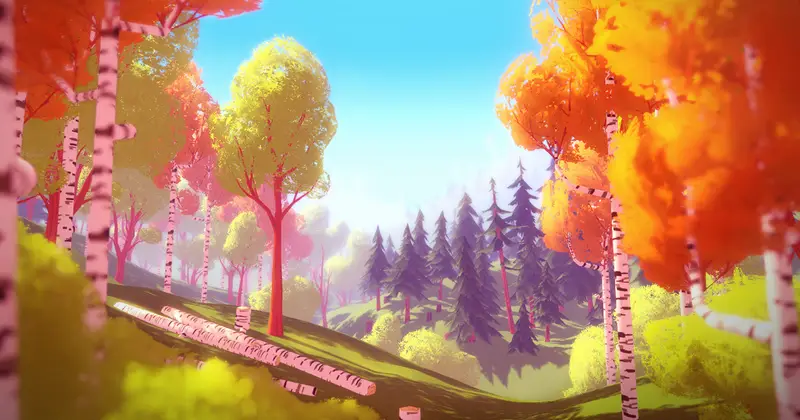
As a lead developer who has spent years optimizing open environments and indie game levels, I know how hard it is to strike the right balance between a charming aesthetic and solid performance. The Critter Environment asset pack hits a sweet spot for developers looking to craft stylized, low-poly natural environments without building every tree mesh, rock model, and grass tile from scratch.
Architecturally, this asset provides low-poly 3D vegetation models paired with custom materials and shader graphs tailored for real-time vertex animation. Instead of relying on heavy bone structures or complex rigging for plant sway, the pack uses vertex colors baked directly into the meshes to mask out displacement. This approach allows Unity's batching system to process hundreds of trees, bushes, and decorative rocks on screen simultaneously with minimal draw calls.
Core Technical Features & Highlights
When pulling open the prefabs and material settings, a few technical choices stand out instantly in terms of scene performance and pipeline flexibility:
- Optimized Mesh Topology: Every tree, shrub, mushroom, and rock asset stays within conservative polygon budgets, making them ideal for mobile devices and performance-constrained platforms.
- Vertex-Color Wind Shaders: Foliage meshes utilize red/green vertex channels to control procedural wind sway speed and displacement magnitude inside custom HLSL / Shader Graph logic.
- Modular Terrain & Decorative Props: Includes ground tiles, fallen logs, rocks, and 2D plant billboards that integrate cleanly with standard Unity terrain painters or third-party instancing tools.
- Global Shader Property Support: Wind vectors and global color tinting can be adjusted scene-wide via a single C# script controller at runtime.
- Clean Lightmap UVs: Secondary UV sets (UV1) are properly unmapped and non-overlapping, preventing lighting artifacts during progressive GPU lightmapping.
Ideal Use Cases & Game Genres
In my experience, Critter Environment is best suited for projects where art direction leans into bright, low-poly, or cozy stylized aesthetics rather than ultra-realistic rendering. Here are a few ideal genres:
1. Cozy Indie RPGs & Adventure Titles
If you are building an exploration-focused game similar to A Short Hike or top-down adventure games, the asset palette offers quick terrain dressing with distinct visual silhouettes that keep players oriented.
2. Mobile & Hyper-Casual Games
Because the polygon density is intentionally low and materials share atlas textures, mobile GPUs can process these environments comfortably at 60 FPS without overheating the target device.
3. Standalone VR Applications
Maintaining high target framerates (90 Hz to 120 Hz) on mobile VR hardware like the Meta Quest requires tight geometry limits. This asset pack allows you to populate dense forests without melting your frame budget.
Quick-Start Unity Setup & Integration Guide
Integrating Critter Environment into your project workflow requires only a few steps to get procedural wind movement and material batching running smoothly.
Step 1: Pipeline Conversion (URP / HDRP)
If you are using the Universal Render Pipeline (URP), select the asset materials inside your project window and navigate to Edit > Rendering > Materials > Convert Selected Built-in Materials to URP. Make sure your shader graph targets use the Universal Render Pipeline/Lit or custom terrain shaders included in the package.
Step 2: Controlling Wind at Runtime
To control global wind strength and direction across all foliage materials dynamically, attach the following C# component to a persistent manager object in your scene:
using UnityEngine;

[ExecuteAlways]
public class CritterWindController : MonoBehaviour
{
    [Header("Global Wind Settings")]
    [Range(0f, 5f)] public float windSpeed = 1.5f;
    [Range(0f, 2f)] public float windStrength = 0.4f;
    public Vector3 windDirection = new Vector3(1f, 0f, 0.5f);

    private static readonly int GlobalWindSpeed = Shader.PropertyToID("_GlobalWindSpeed");
    private static readonly int GlobalWindStrength = Shader.PropertyToID("_GlobalWindStrength");
    private static readonly int GlobalWindDir = Shader.PropertyToID("_GlobalWindDirection");

    private void Update()
    {
        UpdateShaderGlobals();
    }

    private void UpdateShaderGlobals()
    {
        Shader.SetGlobalFloat(GlobalWindSpeed, windSpeed);
        Shader.SetGlobalFloat(GlobalWindStrength, windStrength);
        Shader.SetGlobalVector(GlobalWindDir, windDirection.normalized);
    }
}
Pros & Cons Assessment
Here is my honest developer breakdown of where this pack excels and where you might need to adjust your expectations:
- Pros:
- Extremely clean low-poly visual aesthetic out of the box.
- Low memory footprint due to shared texture atlases.
- Shader-driven wind saves CPU processing cycles compared to skeletal animations.
- Prefab organization makes environment layout fast for level designers.
- Cons:
- Not suitable for games targeting photorealistic or high-fidelity AAA art styles.
- Shader Graph graphs may require minor manual adjustments if you upgrade between major Unity engine versions.
Asset Details & Specifications
| Category | 3D / Vegetation |
|---|---|
| Latest Version | v2.3.2 (2 tracked releases) |
| File Size | 1.04 MB |
| Added to Platform | February 13, 2026 |
| Views | 10 views |
| Downloads | 0 downloads |
| Favourites | 0 favourites |
| Official Store | Buy Original License on Unity Asset Store → |
| Issue with Package? | Report Broken Link → |