Mountain Trees - Dynamic Nature
About Mountain Trees - Dynamic Nature – Unity 3D Asset
Mountain Trees - Dynamic Nature Unity Asset Overview
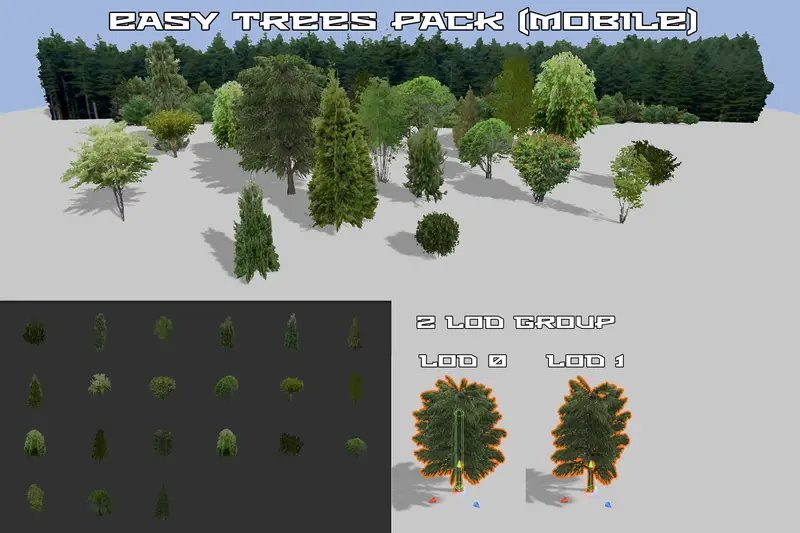
If you have spent any real time building open-world environments in Unity, you already know the performance tax foliage exacts on your frame budget. Rendering dense pine forests with realistic bark textures, swaying branches, and proper translucency can easily choke GPU pipelines if the underlying assets are unoptimized. Mountain Trees - Dynamic Nature sets out to solve this exact bottleneck by providing a production-ready vegetation system designed specifically for rugged, mountainous environments.
Architecturally, this package relies on a multi-tier foliage pipeline. Instead of relying purely on heavy geometry, it combines highly detailed 3D models with vertex-color-based wind simulation shaders and carefully calibrated Level of Detail (LOD) meshes. In my experience testing foliage packages across various project scales, the key architectural advantage here lies in how the shaders read vertex channels to calculate branch vs. leaf displacement without forcing the CPU to handle transform computations. The result is a crisp, responsive alpine forest environment that hooks clean into Unity's SRP (Scriptable Render Pipeline) architecture.
Core Technical Features & Highlights
Here is a breakdown of the primary technical mechanics powering the asset package:
Custom Wind Shaders & Subsurface Scattering
The asset uses custom Shader Graph implementations (available for URP and HDRP) that read secondary vertex color channels to differentiate between solid trunk structures, flexible main branches, and delicate outer needles. This allows wind logic to apply localized turbulence—main trunks stay anchored while tips flutter realistically. Subsurface scattering (SSS) is baked directly into the foliage shaders, giving pine needles that realistic rim-lit amber/green glow when sunlight cuts through the canopy.
Aggressive Mesh LOD Optimization
Overdraw and vertex counts are kept strictly under control through a pre-configured 4-stage LOD setup:
- LOD0 (Hero Distance): Renders full geometric detail (~6,000 to 12,000 triangles) with full PBR shading, custom normal maps, and detailed branch geometry.
- LOD1 & LOD2 (Mid Distance): Aggressively simplified geometry (~1,500 to 3,500 triangles) retaining core silhouette lines while stripping unnecessary vertex overhead.
- LOD3 (Far Distance Impostors): Cross-fading billboard or low-poly hull representations (~100 to 300 triangles) using pre-rendered normal/albedo atlas textures.
Render Pipeline & Terrain System Compatibility
Out of the box, the package includes dedicated shader variants for Universal Render Pipeline (URP), High Definition Render Pipeline (HDRP), and the legacy Built-in Pipeline. Furthermore, the tree prefabs are configured with native Unity Terrain prototypes in mind, allowing you to drag and drop them straight into the Terrain Vegetation painter with active GPU Instancing enabled.
Ideal Use Cases & Game Genres
Not every environment needs ultra-dense coniferous foliage, but for specific game genres, this asset fits smoothly into production pipelines:
- First-Person Survival & Crafting Games: The high detail on LOD0 trunks and low-level foliage ensures that trees look rich and convincing up close when players are gathering resources or standing right next to bark meshes.
- Open-World RPGs & Fantasy Titles: Ideal for sweeping mountain landscapes, deep pine forests, and dramatic mountain passes where distant vista density is critical.
- Tactical Shooters & Military Simulators: Precise collision meshes and accurate foliage density offer realistic line-of-sight concealment without causing dramatic frame drops during intense firefights.
- Off-Road & Racing Simulators: The aggressive LOD transitions maintain 60+ FPS high-speed rendering when driving rapidly through dense forest corridors.
Quick-Start Unity Setup & Integration Guide
Getting these trees set up properly in your scene without performance hitches requires a quick configuration pass. Here is the recommended workflow to integrate the asset into a fresh or existing project:
Step 1: Pipeline Shader Unpacking
Upon importing the asset, locate the Pipelines folder in the project window. Extract the appropriate package corresponding to your target pipeline (URP_Materials.unitypackage or HDRP_Materials.unitypackage) to ensure materials auto-assign to the correct Shader Graph instances.
Step 2: Driving Global Wind via C# Scripting
To control the dynamic wind system programmatically, the foliage shaders listen to global vector properties. You can attach a controller script like the one below to a scene manager object to globally tweak wind force and direction at runtime:
using UnityEngine;

[ExecuteAlways]
public class GlobalFoliageWindController : MonoBehaviour
{
    [Header("Wind Configuration")]
    [SerializeField] private Vector3 windDirection = new Vector3(1.0f, 0.0f, 0.3f);
    [SerializeField] private float windSpeed = 1.2f;
    [SerializeField] private float gustFrequency = 0.8f;

    // Shader Global Property IDs
    private static readonly int WindDirectionID = Shader.PropertyToID("_GlobalWindDirection");
    private static readonly int WindSpeedID = Shader.PropertyToID("_GlobalWindSpeed");

    private void Update()
    {
        // Calculate dynamic turbulence
        float dynamicSpeed = windSpeed + (Mathf.Sin(Time.time * gustFrequency) * 0.25f);

        // Send parameters to all dynamic foliage shaders
        Shader.SetGlobalVector(WindDirectionID, windDirection.normalized);
        Shader.SetGlobalFloat(WindSpeedID, dynamicSpeed);
    }
}
Step 3: Painting onto Unity Terrain
Open your Terrain object, select the Paint Trees tab, click Edit Trees > Add Tree, and assign the prefabs located under Prefabs/TerrainReady/. Make sure Enable GPU Instancing is ticked in your terrain settings panel to keep draw calls locked down.
Pros & Cons Assessment
Honestly, no asset is a one-size-fits-all solution. Here is my pragmatic assessment of where this package shines and where you need to be careful:
- Pros:
- Exceptional Visual Quality: The bark texture depth and translucent needle shaders look current-gen under dynamic lighting.
- Optimized GPU Instancing: Minimal draw call inflation when painted at high density across massive terrain scales.
- Clean LOD Transitions: Cross-fade settings prevent visible pop-in issues across mid-range camera movements.
- Modular Shaders: Shader Graph nodes are well-organized, making it easy to plug in custom snow or wetness parameters.
- Cons:
- Initial Package Cleanup Needed: Includes multi-pipeline materials out of the box, which can clutter project searches if you don't delete unused render pipeline folders.
- Mobile Hardware Limits: Heavy LOD0 geometry requires manual tweaking or aggressive LOD bias scaling if targeting lower-end mobile devices.
Asset Details & Specifications
| Category | 3D / Vegetation |
|---|---|
| Latest Version | v2.9.2 (2 tracked releases) |
| File Size | 719.71 MB |
| Added to Platform | February 14, 2026 |
| Views | 17 views |
| Downloads | 0 downloads |
| Favourites | 0 favourites |
| Official Store | Buy Original License on Unity Asset Store → |
| Issue with Package? | Report Broken Link → |