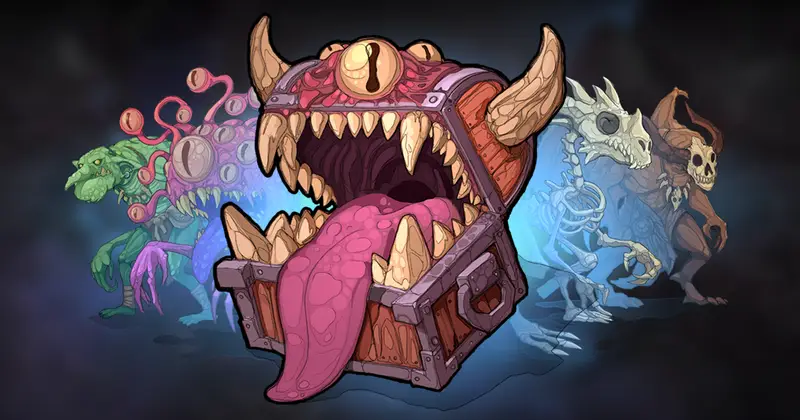
Knight vs Undead - Game Sprites
About Knight vs Undead - Game Sprites – Unity 2D & UI Pack
Knight vs Undead - Game Sprites Unity Asset Overview
As a 2D technical animator and developer, setting up clean, modular sprite hierarchies for combat-heavy side-scrollers can consume weeks of setup time before gameplay feels right. The Knight vs Undead - Game Sprites package addresses this exact hurdle by providing an asset set tailored for rapid development and clean runtime integration within Unity's modern 2D pipeline.
Architecturally, this package delivers high-resolution PNG sprite sheets split systematically across character states and environmental elements. Rather than locking you into rigid monolithic atlases, the modular construction lets you integrate sprites directly into Unity's Sprite Library and Sprite Resolver components. In my experience, this separation of source art from state logic allows you to set up flexible Mecanim state machines once and reuse them seamlessly across multiple unit types.
Whether you rely on the built-in 2D Renderer or stick to the legacy Built-in Render Pipeline, the structural layout of these sprites makes sorting layer management and colliders straightforward to set up.
Core Technical Features & Highlights
The asset isn't just a collection of drawings; it is organized to align with standard Unity 2D workflows. Here is the key takeaway: the clean separation of frame sequences makes setting up Animation Clips and Mecanim State Machines remarkably fast.
Sprite Atlasing and Optimization Specifications
- Modular Sheet Slicing: Sprite sheets are laid out on predictable grid boundaries, allowing automatic slicing using Unity's Sprite Editor without pixel drift.
- URP 2D Light Compatibility: Includes crisp source sprites that cleanly generate secondary textures (such as Normal Maps) for reactive modern 2D light interaction.
- Frame-Accurate Pivot Points: Key character origins are set consistently at the feet center, preventing visual jitter when transitioning between ground locomotion and combat animation states.
- Layered Environment Assets: Background elements come structured as tileable sets designed for Parallax Scrolling scripts and tilemaps.
Key Technical Specifications
- Source Format: Clean, high-DPI 32-bit transparent PNG sequences.
- Animation States Included: Idle, Run, Jump, Attack Sequences, Hurt/Impact, and Death clips.
- Render Pipeline Support: Fully compatible with URP 2D Renderer, HDRP, and Built-in Render Pipeline.
- Performance Footprint: Highly compressible sprites capable of packing into compact Sprite Atlases for low draw-call overhead on mobile GPUs.
Ideal Use Cases & Game Genres
Honestly, the visual style and technical architecture of this asset pack make it adaptable to several side-scrolling and top-down project types:
- 2D Action Platformers & Metroidvanias: Precise frame timing on attack animations makes implementing hitboxes and hurtboxes straightforward.
- Roguelite Hack-and-Slash Games: The distinction between the Knight and Undead variants allows for fast visual enemy grouping and varied combat mechanics.
- Tactical Turn-Based RPGs: Distinct idle, cast, attack, and damage states make setting up turn-based battle grids painless.
- Hyper-Casual & Endless Runners: High-contrast characters ensure strong visual readability on small screens.
Quick-Start Unity Setup & Integration Guide
Integrating these characters into a responsive, physics-driven character controller requires standardizing frame timing and animation triggers. Below is a practical step-by-step setup process along with a lightweight production controller script.
Step 1: Asset Preparation & Import Settings
Upon importing the asset, select your sprite sheets in the Project window and set the Texture Type to Sprite (2D and UI). Ensure the Sprite Mode is set to Multiple and open the Sprite Editor. Slice the assets by cell count or grid size, and verify that the Pivot is anchored consistently to Bottom Center across all attack and locomotion frames.
Step 2: Animator Controller Setup
Create an Animator Controller and define parameters such as Speed (Float), IsGrounded (Bool), Attack (Trigger), and Die (Trigger). Map transitions using exit times primarily for attack and hurt states, while keeping locomotion transitions responsive with zero exit time.
Step 3: Character Runtime Controller Script
Attach the following script to your unit GameObject (e.g., the Knight or Skeletal Undead). It handles locomotion physics while updating the Animator parameters cleanly.
using UnityEngine;

[RequireComponent(typeof(Rigidbody2D))]
[RequireComponent(typeof(Animator))]
public class Simple2DCharacterController : MonoBehaviour
{
    [Header("Locomotion Settings")]
    [SerializeField] private float moveSpeed = 5.0f;
    [SerializeField] private float jumpForce = 8.0f;
    [SerializeField] private Transform groundCheck;
    [SerializeField] private LayerMask groundLayer;

    private Rigidbody2D rb;
    private Animator animator;
    private bool isGrounded;
    private bool isFacingRight = true;

    // Animator Parameter Hashes for Performance
    private static readonly int SpeedHash = Animator.StringToHash("Speed");
    private static readonly int IsGroundedHash = Animator.StringToHash("IsGrounded");
    private static readonly int AttackHash = Animator.StringToHash("Attack");

    private void Awake()
    {
        rb = GetComponent();
        animator = GetComponent();
    }

    private void Update()
    {
        float moveInput = Input.GetAxisRaw("Horizontal");

        // Ground Check
        if (groundCheck != null)
        {
            isGrounded = Physics2D.OverlapCircle(groundCheck.position, 0.2f, groundLayer);
        }

        // Apply movement physics
        rb.velocity = new Vector2(moveInput * moveSpeed, rb.velocity.y);

        // Update Animator state
        animator.SetFloat(SpeedHash, Mathf.Abs(moveInput));
        animator.SetBool(IsGroundedHash, isGrounded);

        // Handle Jump
        if (Input.GetButtonDown("Jump") && isGrounded)
        {
            rb.velocity = new Vector2(rb.velocity.x, jumpForce);
        }

        // Handle Combat Trigger
        if (Input.GetButtonDown("Fire1"))
        {
            animator.SetTrigger(AttackHash);
        }

        // Character flipping logic
        if (moveInput > 0 && !isFacingRight) Flip();
        else if (moveInput < 0 && isFacingRight) Flip();
    }

    private void Flip()
    {
        isFacingRight = !isFacingRight;
        Vector3 currentScale = transform.localScale;
        currentScale.x *= -1;
        transform.localScale = currentScale;
    }
}
Pros & Cons Assessment
Pros
- Production-Ready Animation Sheets: Key animation states are clear, fully drawn, and easy to slice out of the box.
- High Visual Contrast: Clear silhouette design ensures characters stand out against dark fantasy backgrounds.
- Highly Performant: Well-suited for mobile, web, and handheld console targets when packed into a single Sprite Atlas.
- Modular Environment Elements: Included background and foreground assets make setting up parallax effects straight forward.
Cons
- Manual Hitbox Setup Required: You will need to add BoxCollider2D or PolygonCollider2D components manually to hitboxes on individual attack frames.
- Fixed Art Style: The distinctive hand-drawn visual style may require custom art passes if you plan to merge assets from different creators.
Asset Details & Specifications
| Category | 2D / Characters |
|---|---|
| Latest Version | v1.0 |
| File Size | 21.91 MB |
| Added to Platform | February 10, 2026 |
| Views | 1 views |
| Downloads | 0 downloads |
| Favourites | 0 favourites |
| Issue with Package? | Report Broken Link → |