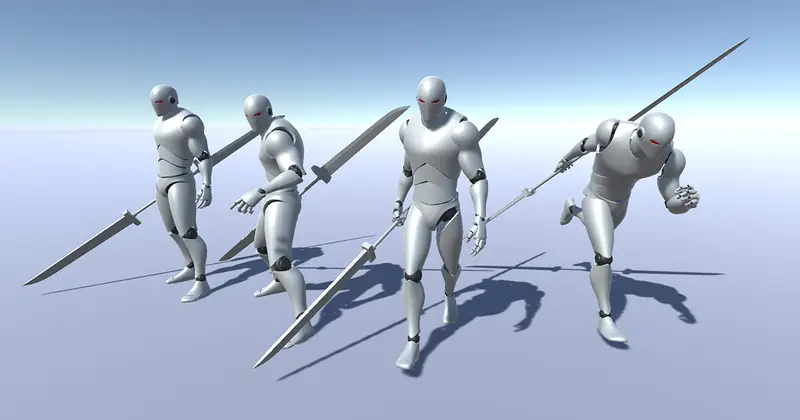
Dual Sword Animation Pack
About Dual Sword Animation Pack – Unity 3D Asset
Dual Sword Animation Pack Unity Asset Overview
Hey there, fellow developers. As someone who has spent over eight years shipping titles in Unity, I know firsthand how painful it is to build a fluid dual-wielding melee combat system from scratch. When you are scoping out an action RPG or a fast-paced hack-and-slash, the animation pipeline is usually where timelines go to die. That is why taking a close look at the Dual Sword Animation Pack is so crucial. In my experience, this asset targets a very specific bottleneck in production: bridging the gap between raw motion capture data and responsive, gameplay-ready state machines.
From an architectural standpoint, this package is built around a clean, modular hierarchy. It doesn't force you into a bloated framework or a rigid proprietary combat engine. Instead, it gives you a pure collection of humanoid-rigged animation clips, complete with root motion variants, clean transition frames, and standard avatar mappings. Whether you are building your own custom state machine or plugging these clips into Unity Animator controllers, the underlying structure respects standard Humanoid avatar conventions, making retargeting to custom character skeletons a straightforward chore rather than a multi-day debugging nightmare.
Core Technical Features & Highlights
Let's talk under-the-hood specifics. Animation assets live or die by their technical execution—specifically how well they handle root motion, root rotation consistency, and transition windows. This pack hits several key technical notes that make life easier for programmers and technical animators alike.
Animation Quality and Root Motion
- Humanoid Rigging: Fully compatible with standard Avatar setups, meaning you can easily swap out source meshes without breaking your animation bindings.
- Root Motion Control: Includes both root-motion and in-place (non-root motion) variations for core movement loops, giving you the flexibility to drive velocity via code (like a custom
CharacterController) or pure animation data. - Clean Blend Trees: Idle, walk, run, and sprint transitions are authored with consistent foot-planting phases, which minimizes sliding when hooked up to a 2D directional BlendTree.
Pipeline and Compatibility
Honestly, one of the biggest headaches with asset store animation packs is dealing with outdated scale factors or broken avatar masks. This pack plays nicely with modern rendering pipelines like Universal Render Pipeline (URP) and High Definition Render Pipeline (HDRP) because it stays strictly out of the rendering domain—it focuses purely on transforms. You won't find any conflicting shaders or material properties here. It integrates cleanly into your existing project structure without throwing import warnings or messing with your project settings.
Ideal Use Cases & Game Genres
Not every animation pack fits every game. If you try to use heavy, momentum-driven dual sword animations in a hyper-casual runner, your movement responsiveness will tank. Here is where this specific asset shines:
- Indie Action RPGs: Perfect for top-down or third-person fantasy titles where the player character wields twin blades, daggers, or short swords.
- Metroidvania & Platformers: The nimble attack strings and dodge rolls translate wonderfully to 2.5D or 3D side-scrolling combat systems.
- Arena Brawlers: Fast recovery frames and aggressive combo openers make these animations suitable for fast-paced combat arenas.
Quick-Start Unity Setup & Integration Guide
Getting these animations to respond smoothly to player input requires a clean setup in your Animator Controller. Here is a practical, step-by-step workflow to get your character moving and attacking.
Step 1: Import and Avatar Verification
Import the package into your project. Select the root folder of the asset, check the model import settings in the Inspector, and ensure the animation rig is set to Humanoid. Verify that your character prefab shares the same humanoid mapping so the retargeting resolves cleanly.
Step 2: Configuring the Animator Controller
Create a new Animator Controller and assign it to your character's Animator component. Set up parameters for movement speed (Float), attack triggers (Trigger), and dodge states (Bool). Here is a simple movement script snippet to feed velocity data into your BlendTree parameters:
using UnityEngine;

[RequireComponent(typeof(Animator))]
[RequireComponent(typeof(CharacterController))]
public class DualSwordPlayerController : MonoBehaviour
{
    private Animator animator;
    private CharacterController controller;
    private float movementSpeedZ;
    private float movementSpeedX;

    void Start()
    {
        animator = GetComponent<Animator>();
        controller = GetComponent<CharacterController>();
    }

    void Update()
    {
        float moveVertical = Input.GetAxis("Vertical");
        float moveHorizontal = Input.GetAxis("Horizontal");

        Vector3 moveDir = new Vector3(moveHorizontal, 0f, moveVertical).normalized;
        controller.Move(moveDir * Time.deltaTime * 5f);

        // Feed inputs directly into animator parameters for blend trees
        animator.SetFloat("SpeedZ", moveVertical, 0.1f, Time.deltaTime);
        animator.SetFloat("SpeedX", moveHorizontal, 0.1f, Time.deltaTime);

        if (Input.GetMouseButtonDown(0))
        {
            animator.SetTrigger("LightAttack");
        }
    }
}
Step 3: Fine-Tuning Transition Durations
When chaining attack animations, make sure to adjust your Transition Duration in the Animator window. Setting transition times too high will make input feel sluggish; setting them to zero can cause visual snapping. Aim for a sweet spot around 0.05 to 0.1 seconds for snappy melee responses.
Pros & Cons Assessment
Every developer loves an honest evaluation before committing assets to a repository. Here is my breakdown of the strengths and weaknesses of this pack.
Pros
- Consistent Rigging: Clean bone structures mean zero weird stretching when applied to standard humanoid proportions.
- Comprehensive Combos: Multiple attack variations prevent the combat loop from feeling repetitive too quickly.
- In-Place Options: Having both root motion and in-place movement clips saves a lot of custom controller refactoring later.
Cons
- Generic Styling: The motion style is fairly standard fantasy; highly stylized or exaggerated anime games might require custom keyframing adjustments.
- Audio Not Included: Like most raw animation packs, you will need to source your own weapon swoosh and impact sound effects.
Asset Details & Specifications
| Category | 3D / Animations |
|---|---|
| Latest Version | v1.0 |
| File Size | 110.17 MB |
| Added to Platform | August 21, 2026 |
| Views | 4 views |
| Downloads | 6 downloads |
| Favourites | 0 favourites |
| Official Store | Buy Original License on Unity Asset Store → |
| Issue with Package? | Report Broken Link → |