MONSTER FULL PACK VOL 3
About MONSTER FULL PACK VOL 3 – Unity 3D Character Model
MONSTER FULL PACK VOL 3 Unity Asset Overview
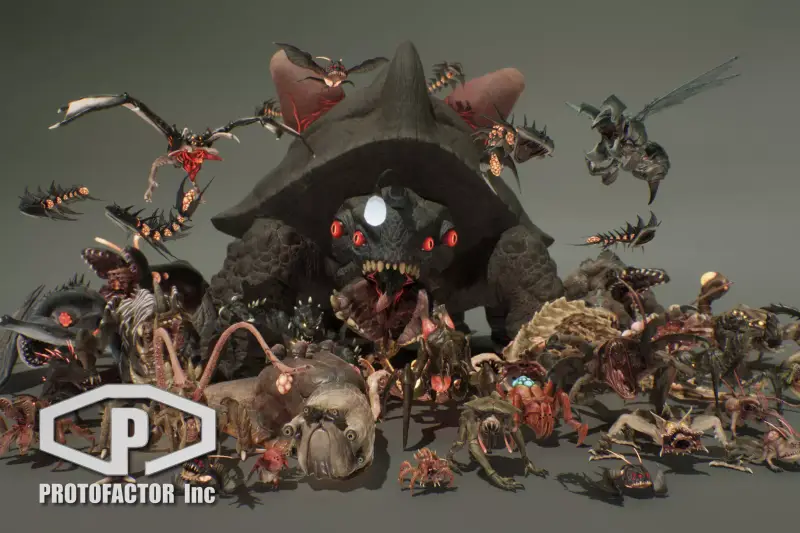
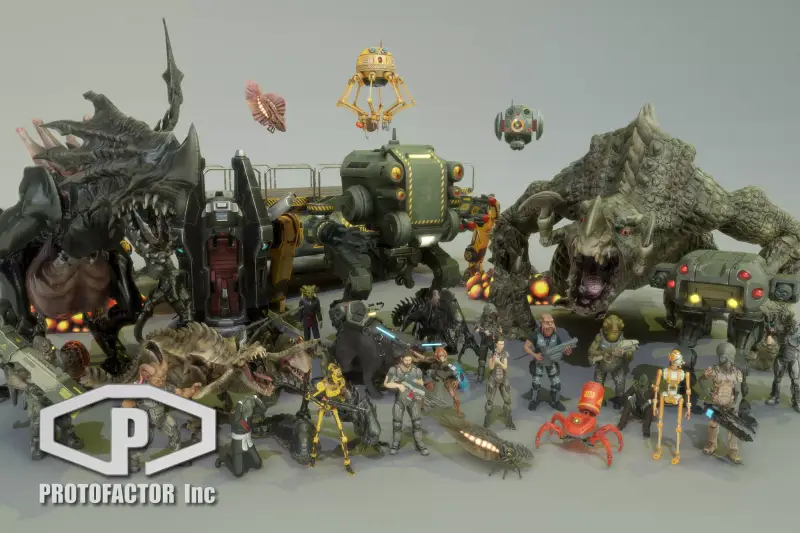
As a game developer who has spent years building combat systems and enemy AI for mid-tier indie studios, I can tell you that populating a dark fantasy or sci-fi world with high-fidelity, unique enemy types is a massive bottleneck. You either spend months sculpting and rigging models in Blender or end up with cheap-looking assets that ruin immersion. MONSTER FULL PACK VOL 3 addresses this specific production challenge by providing a high-volume collection of creature models equipped with complete animation sets, PBR textures, and mesh variations ready for production setup.
From an architectural standpoint, this pack focuses on plug-and-play prefab setups compatible with Unity's Mecanim system. The assets rely on a standard mix of Generic and Humanoid rig structures, allowing you to easily hook them into existing NavMeshAgent navigation pipelines and state-driven enemy AI systems. In my experience, having standardized bone hierarchies across a creature pack saves dozens of hours otherwise spent tweaking retargeting settings or rebuilding avatar masks from scratch.
Core Technical Features & Highlights
What makes this specific volume stand out isn't just the visual variety—it is how well the asset technical specifications adhere to real-world performance budgets. Here is a breakdown of what you get under the hood:
- Polygon Budgets & Mesh Topology: Average triangle counts range from 10,000 to 25,000 tris per creature at LOD0, dropping down significantly at lower detail levels. The edge flow is optimized cleanly around mesh deformation zones (joints, jaws, shoulders), minimizing mesh stretching during intense attack animations.
- PBR Texture Pipeline: Out of the box, models come packed with 2048x2048 to 4048x4048 texture maps including Albedo/BaseColor, Normal Maps, Metallic/Smoothness (channel packed), and Ambient Occlusion.
- Comprehensive Animation Sets: Each creature includes essential animation clips: multi-directional locomotion (Walk, Run), idle variants, multiple attack combos, hit reaction states, and distinct death sequences.
- Level of Detail (LOD) Configurations: Most major creatures include pre-configured LODGroup components with 2 to 3 discrete mesh states, essential for maintaining frame rate stability in wave-based or open-world scenarios.
Render Pipeline Integration (URP / HDRP)
By default, the materials are assigned using Unity's Standard Shader for the Built-In Render Pipeline. If you are running on the Universal Render Pipeline (URP) or HDRP, you will need to run the standard shader conversion utility via Edit > Rendering > Materials > Convert Selected Built-in Materials to URP. For high-end subsurface scattering on monster skin or dynamic emission control, I recommend swapping the default URP Lit shader for a custom SRP shader graph.
Ideal Use Cases & Game Genres
Because these models lean toward dark, imposing, and aggressive visual design, they fit naturally into specific genres without looking out of place:
- Third-Person Action RPGs & Souls-likes: The distinct telegraphing in the attack animations makes these creatures ideal for timing-based dodge and parry mechanics.
- Co-Op Horde / Wave Shooters: With lower LOD meshes built-in, you can comfortably spawn 20 to 40 active enemies on screen before encountering heavy draw call overhead.
- Survival Horror: The high-resolution normal maps hold up exceptionally well under point lights and dynamic flashlight setups in close quarters.
- Top-Down Hack and Slash: The broad silhouette design ensures the creatures remain clearly distinguishable even from a zoomed-out isometric camera perspective.
Quick-Start Unity Setup & Integration Guide
Integrating these monsters into a functional state machine is straightforward. Here is a practical workflow to get an enemy up and moving toward your player in minutes.
1. Importing and Setting Up Rig Configuration
After importing the package into your project directory, select the base model FBX file in the Project view, navigate to the Rig tab in the Inspector, and verify that the Animation Type is set to Generic or Humanoid depending on the specific model's setup. Make sure to click Apply.
2. Enemy AI Controller Implementation
Attach a NavMeshAgent component to the monster prefab along with a custom script to control locomotion state changes. Here is a clean, production-ready C# script demonstrating how to drive monster animations via velocity and trigger attack states:
using UnityEngine;
using UnityEngine.AI;

[RequireComponent(typeof(NavMeshAgent))]
[RequireComponent(typeof(Animator))]
public class MonsterAIController : MonoBehaviour
{
    [Header("Detection & Combat Settings")]
    [SerializeField] private Transform targetPlayer;
    [SerializeField] private float attackRange = 2.2f;
    [SerializeField] private float attackCooldown = 1.5f;

    private NavMeshAgent agent;
    private Animator animator;
    private float nextAttackTime;

    // Fast Animator Parameter Hashing
    private static readonly int SpeedParam = Animator.StringToHash("Speed");
    private static readonly int AttackTriggerParam = Animator.StringToHash("AttackTrigger");

    private void Awake()
    {
        agent = GetComponent<NavMeshAgent>();
        animator = GetComponent<Animator>();
    }

    private void Update()
    {
        if (targetPlayer == null) return;

        float distanceToTarget = Vector3.Distance(transform.position, targetPlayer.position);

        if (distanceToTarget <= attackRange)
        {
            // Stop movement and initiate attack
            agent.isStopped = true;
            animator.SetFloat(SpeedParam, 0f, 0.1f, Time.deltaTime);

            if (Time.time >= nextAttackTime)
            {
                ExecuteAttack();
                nextAttackTime = Time.time + attackCooldown;
            }
        }
        else
        {
            // Pursue Target
            agent.isStopped = false;
            agent.SetDestination(targetPlayer.position);

            // Sync animator parameter with current NavMesh speed
            float currentSpeed = agent.velocity.magnitude;
            animator.SetFloat(SpeedParam, currentSpeed, 0.1f, Time.deltaTime);
        }
    }

    private void ExecuteAttack()
    {
        transform.LookAt(new Vector3(targetPlayer.position.x, transform.position.y, targetPlayer.position.z));
        animator.SetTrigger(AttackTriggerParam);
    }
}
Pros & Cons Assessment
Pros
- Production-Ready Animation Clips: Root motion and in-place animation options are provided, giving you flexibility over movement implementation.
- Distinct Visual Silhouettes: High artistic quality; creatures look imposing and varied, avoiding the generic look common in basic asset packs.
- Performance Minded: Pre-built LODGroup components help maintain performance budgets during heavy enemy encounters.
- Clean Bone Structure: Straightforward skeleton hierarchies make adding weapon sockets or particle effect attachment points simple.
Cons
- Material Conversion Required for SRPs: Requires manual material upgrades if your project uses URP or HDRP out of the box.
- Large Texture Memory Footprint: Uncompressed 4K textures can inflate build size quickly if you don't adjust override settings in the Texture Import Settings for mobile or console targets.
Asset Details & Specifications
| Category | 3D / Characters |
|---|---|
| Latest Version | v1.151 |
| File Size | 1.90 GB |
| Added to Platform | July 8, 2026 |
| Views | 9 views |
| Downloads | 4 downloads |
| Favourites | 0 favourites |
| Official Store | Buy Original License on Unity Asset Store → |
| Issue with Package? | Report Broken Link → |